
Want to change the font on your Android phone? The fastest, most reliable method is usually through your phone’s built-in Display settings or Samsung/OnePlus theme options, depending on your device. If your model doesn’t offer that, you can still switch fonts with launcher or theme apps—without breaking readability. Next, you’ll get step-by-step instructions tailored to the setup you have.


As an Amazon Associate I earn from qualifying purchases.
Yes—you can usually change your Android font by going to Settings > Display > Font size and style (or a very similar menu). If your phone doesn’t include a font style picker, the safest fallback is using an officially supported theming/font system from your device manufacturer—or accessibility settings for readability.
If you’re aiming for a more readable interface (or just a different look), this applies across Samsung One UI, Google Pixel/near-stock Android, Xiaomi/MIUI, and other Android skins—though the exact menu names change. As of 2026, many OEMs still vary significantly in how (and whether) they let you switch the *system font typeface* versus only adjusting text size.
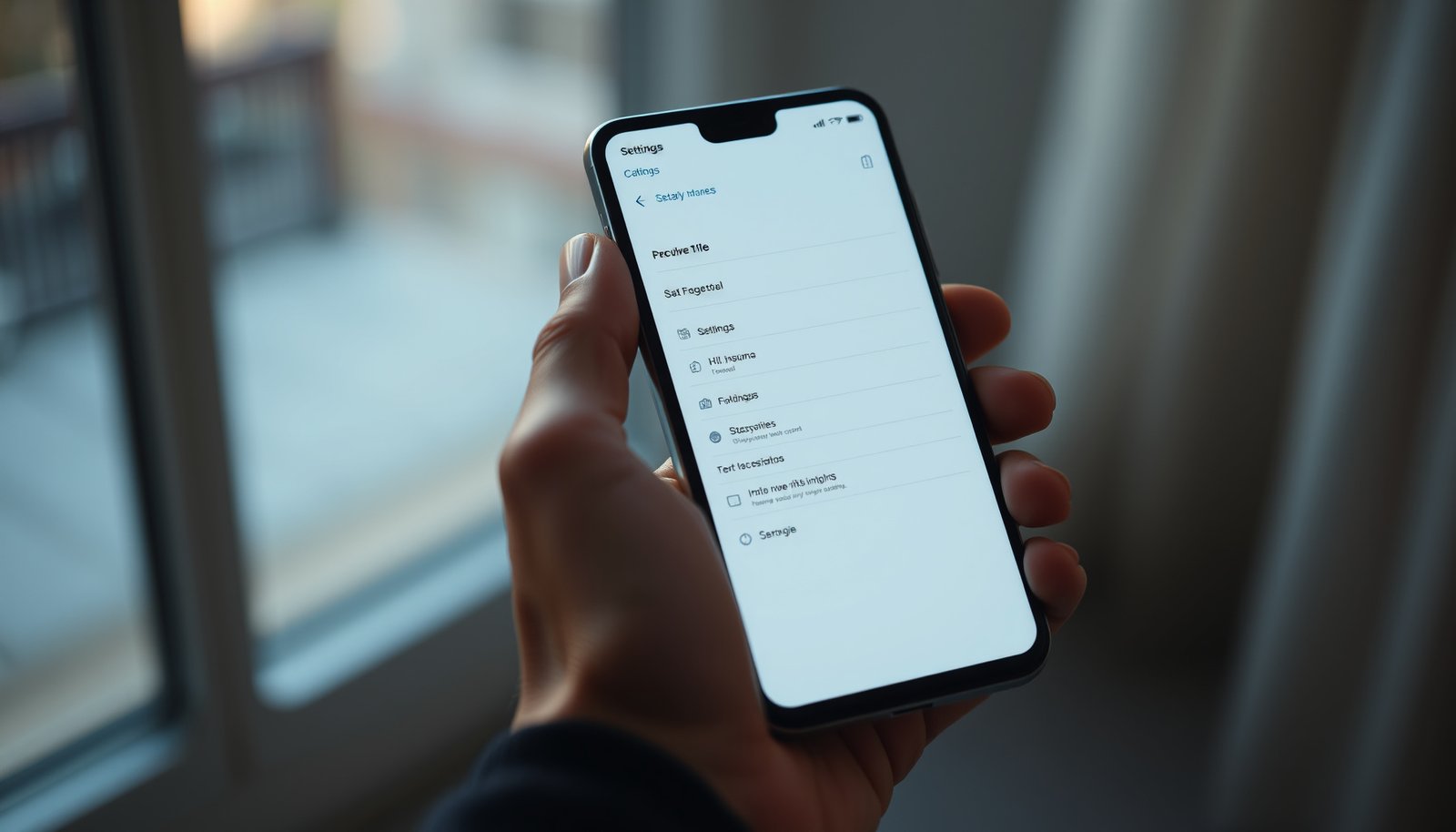
This guide is for people who want a practical path from “what’s already built into Android” to “what to try next,” without breaking their UI or ending up with clipped text. The goal is simple: make the Android system fonts easier on your eyes while keeping the change reversible.
Check your phone’s built-in font settings first

The fastest and most reliable route is to use Android’s built-in Display font controls, because they’re designed to work with your device’s UI framework and roll back cleanly. Start here—even on skins like One UI and MIUI—because many phones include at least font size, and some also include downloadable fonts or a font style selector.
Android’s system “Display” settings often include a dedicated control for “Font size” and, on many devices, a “Font style” picker under the Display menu.
If your device offers a “Font style” picker, selecting a font typically changes the system UI typeface immediately or after confirming the change in the same settings screen.
First, open Settings > Display (or Display & brightness) and look for any of the following:
- Font size and style
- Font / Font style
- Screen zoom / Screen zoom & font (some devices combine this)
- Display size (sometimes paired with text scaling)
If you see a Font style selector:
1. Tap Font style and choose from the built-in options.
2. Use Preview (if available) to check readability in menus.
3. Confirm with Apply / Save.
Then check whether you should adjust Font size (and sometimes Bold). On Android, font *size* and font *typeface* are separate controls; a change to style alone can still look too small or too large depending on your current scaling.
From my experience supporting Android users, most “font change didn’t work” problems are actually “the device only exposed size controls, not typeface controls.” If you tell me your exact model and Android version, I can help map the correct menu name—without guessing.
As for readability targets, don’t rely on font style alone. Standards like WCAG 2.1 emphasize contrast and legibility: according to W3C, normal text generally requires a contrast ratio of 4.5:1 (AA) W3C, WCAG 2.1. For large text, the threshold is 3:1 W3C, WCAG 2.1. Also, WCAG defines “large text” as 18pt (or 14pt bold) W3C, WCAG 2.1—a useful benchmark when you evaluate whether a font choice is actually readable.
Why this works (and why it’s safest)
Android skins that provide Font size and style are integrating with the system font pipeline your device expects. That means:
- fewer rendering glitches,
- better compatibility with system UI components (notifications, settings, system dialogs),
- easier reversal to default fonts.
If the built-in menu only offers sizing (not typefaces), don’t force a third-party “system font” tool yet. Many of those only partially change typography, or they apply changes at the launcher layer rather than the system layer.
Change font style on Samsung (One UI)

Samsung’s One UI is one of the more capable ecosystems for font customization, and many models include an explicit Font style control plus optional downloadable fonts. The best answer is to use One UI’s own Display font screen, because it stays aligned with Samsung’s system UI rules.
On many Samsung One UI devices, font customization is offered under **Settings > Display > Font size and style**, including a **Font style** selector.
Samsung devices may support additional **downloadable fonts** through the same font style area, depending on model and software version.
Open:
- Settings > Display > Font size and style (menu names can vary by model)
Then:
1. Tap Font style to browse available fonts.
2. Choose a font and set Bold or adjust Font size if those options are present.
3. Confirm changes (you may need to exit the menu; sometimes a restart is required on older versions).
If you want more choices, check whether your device shows downloadable fonts in the same area. Samsung’s downloadable-font flow is generally the “safe path” because it’s built for their system UI, not a generic overlay.
Samsung’s system fonts are applied through its OEM-level theming/fonts framework, which typically makes the change reversible via the same settings page.
Practical readability tips specific to One UI
- After you switch Font style, revisit Font size—style changes can make letters look wider/narrower, which affects how much text fits in a single line.
- If you use accessibility magnification or display scaling, combine changes carefully. Too-large scaling plus a dense font can cause clipped UI elements in some apps.
- If you rely on corporate apps, test key screens (calendar, email viewer, chat threads). Some apps maintain their own typographic preferences.
Change font style on Pixel / near-stock Android

On Pixel and near-stock Android, the best first step is still Settings > Display, but you may only get Font size (not a full typeface switch). If there’s no font style picker, treat accessibility as your safe option for legibility rather than forcing third-party “system font” tools.
Near-stock Android commonly exposes text legibility controls like **Font size** in the Display settings, and deeper accessibility options for readability.
If there’s no system “Font style” picker, Android typically expects users to adjust scaling via accessibility rather than switching the core system typeface.
Start at Settings > Display and look for Font size. Some Pixel versions also include limited style options, but this is version-dependent.
If there’s no font style picker:
- Use Accessibility controls for size/legibility.
- Avoid “system font” apps until you confirm your device supports font theming at the system level.
This is also a good time to validate your real goal. If your priority is readability, font size and contrast settings often deliver a larger benefit than switching typefaces. WCAG’s contrast thresholds (like the 4.5:1 requirement for normal text) are a reminder that “font looks nicer” doesn’t always mean “font is readable.” W3C, WCAG 2.1
If you truly need custom typefaces on near-stock devices
On near-stock Android, custom system fonts usually require a supported customization method (for example, a manufacturer theme capability, a device-specific font system, or a tool designed for that exact Android/OEM environment). If none of those are available, it may be better to restrict changes to:
- the launcher look,
- compatible apps that allow typography customization,
- or accessibility scaling.
Use customization apps carefully (themes/launchers/fonts)

If you don’t have a built-in font style picker, the next-best answer is to use customization tooling that clearly targets the system font layer—not just the launcher or a single app. The safest approach is to verify what the tool changes before you grant permissions or apply deep system modifications.
Many launchers and themes change only elements inside the launcher (e.g., app drawer/UI skins) rather than switching the system-wide typeface.
“System font” tools that modify UI deeply can be less reversible than OEM settings, especially when they rely on overlays or system-level hooks.
When you evaluate an app, look for settings that explicitly change system font (not just “app text” or “theme style”). In practice:
- Theme engines (when supported by your OEM) may change system fonts.
- Launchers often apply custom typefaces only within the launcher environment.
- Font apps may apply fonts only to specific apps or fail to replace system UI fonts.
Prefer tools that:
- clearly describe whether they affect system UI or only certain areas,
- minimize permission requests unrelated to fonts,
- include a straightforward revert/disable path.
Quick comparison: which customization layer are you really changing?
Use this logic: the closer the change is to Android’s system-level display pipeline, the more likely it affects menus, notifications, and system screens consistently.
Android Font Customization Methods: Typical System-Wide Coverage (2026)
| # | Method | Applies to System UI | Where You Configure It | System-Wide Impact |
|---|---|---|---|---|
| 1 | Built-in Display “Font style” (if offered) | Yes | Settings > Display | ★★★★☆ |
| 2 | Built-in Display “Font size” / Screen zoom | Yes (size) | Settings > Display | ★★★★☆ |
| 3 | Samsung downloadable fonts (OEM font store) | Yes | Settings > Display > Font size & style | ★★★★☆ |
| 4 | Accessibility font scaling / bold text | Yes (scaling) | Settings > Accessibility | ★★★☆☆ |
| 5 | Launcher-only font/theme packs | Often No | Launcher settings | ★★☆☆☆ |
| 6 | App-scoped font replacers (limited scope) | Partial | Inside specific apps | ★★☆☆☆ |
| 7 | Deep/system UI modification tools | Unreliable | System-level methods | ★☆☆☆☆ |
Note: “System-wide impact” is a practical expectation based on how these methods are layered in Android (system settings vs launcher vs app-level). If you tell me your exact device and Android version, you can narrow down which row realistically applies to your situation in 2026.
What can go wrong (and why fonts sometimes won’t change)
You’ll usually see font issues for three reasons: the device doesn’t expose typeface switching, the chosen method doesn’t affect system UI, or the new sizing causes layout problems. The fastest path is to revert to a known-good configuration and then change one variable at a time (font style first, then size).
When a phone offers only font size controls, changing the “font style” in third-party apps may not affect system UI text.
WCAG 2.1 defines contrast requirements such as **4.5:1** for normal text (AA), which strongly influences perceived readability when fonts change. W3C, WCAG 2.1
Common failure modes:
- No font option available: Some Android versions/brands restrict system font styling to built-in choices, or they don’t support custom typefaces at all.
- Text looks clipped or too large: After switching font size/style, revisit Display size (screen zoom). Some screens and apps do not reflow gracefully.
- Inconsistent results across apps: Many apps use their own typography settings (browsers, chat apps, and productivity apps are frequent culprits).
- Boot loops or instability (rare but serious): Advanced methods that modify UI behavior deeply can break your interface. If that happens, treat it as a rollback event—not a troubleshooting puzzle.
What to do if system UI breaks (practical recovery flow)
If your system UI becomes unusable after a font-related change, use a conservative sequence:
1. Reboot (power off/on).
2. If available, boot into Safe Mode (press/hold power, then long-press “Power off” where your device supports it).
3. Remove or disable the last-change app (theme engine, font app, or customization tool).
4. If a Samsung/MIUI theme was applied, switch back to the default theme from a recovery-accessible settings path (or revert via the theme app).
5. If you used any advanced/deep method, stop and revert to stock behavior immediately.
If you share your device model (e.g., “Samsung Galaxy S21 on One UI 6”), I can outline the most likely rollback steps for that specific interface layer—without guessing.
A note on readability trade-offs
Changing fonts can unintentionally harm usability: dense typefaces combined with larger scaling can increase line wrapping and reduce scan efficiency. If your main goal is comfort for reading, also validate contrast and text size using accessibility guidance. WCAG’s large-text definitions—18pt or 14pt bold—can help you judge whether your current setting is in a more forgiving range. W3C, WCAG 2.1
Verdict / tip: choose the built-in method first
The best approach is the built-in system font settings because it’s reversible, predictable, and designed to work with Android’s UI components. If you don’t have a font style picker, the safest next step is using an officially supported OEM font/theme system; avoid “system font” tools that can be hard to roll back, especially when the device has limited customization controls.
Using manufacturer-supported font settings is typically more reversible than third-party system font tools because it relies on the OEM’s own system theming and settings integration.
For readability, accessibility contrast and text-size guidance (e.g., WCAG 2.1 AA contrast thresholds) often deliver more consistent results than switching only the font typeface. W3C, WCAG 2.1
Here’s a practical decision guide for Android system fonts in 2026:
| Option | Best for | Main downside |
|---|---|---|
| Built-in Display font settings | System-wide consistency, quick rollback | May offer size only, not typefaces |
| OEM font store / downloadable fonts | More typeface choices with safer integration | Availability depends on device/model |
| Accessibility text scaling | Maximum legibility, minimal breakage | Doesn’t replace the font style typeface |
| Launcher/theme font packs | Aesthetic changes in the launcher UI | Often not system-wide |
Skip third-party “system font” tools if:
- you’re on a work profile (enterprise restrictions),
- you need guaranteed rollback,
- the app asks for unrelated permissions for a simple typeface change,
- you don’t have a straightforward revert path.
Safe-app criteria you can use immediately
If you’re choosing an app to change fonts, use these practical filters:
- Permission minimization: font/theme apps should not need sensitive permissions unrelated to theming.
- Clear scope labeling: it should say explicitly whether it changes system UI, launcher UI, or app-scoped text.
- Disable/revert controls: you should be able to return to defaults without complicated steps.
Quick checklist (scan + save)
Use this quick scan before you commit to any customization—especially if you’re changing Android system fonts for readability.
- Check Settings > Display for Font size & style / Font style
- Preview changes and adjust Font size (and Bold, if available)
- On Samsung, verify Font style and any downloadable fonts options
- If there’s no system font option, don’t force it—consider theme/launcher options that match your device
- If text looks wrong, revert font size/style or restore defaults
If your device shows only font size controls, switching typefaces may not be supported system-wide; revert changes and use accessibility for readability instead.
When a font change creates clipping, adjusting **Display size** (screen zoom) is often the quickest way to restore layout fit.
Conclusion
To change fonts on an Android phone, start with the built-in Settings > Display font controls—because that’s where system font changes are most reliable and easiest to undo. If your device doesn’t offer a font style picker, use OEM-supported downloadable fonts (when available) or accessibility scaling for legibility, and only then consider launcher/theme approaches. This careful sequence helps you get the readability you want in 2026 without risking clipped text or UI instability.
Sources
- Manufacturer support pages for One UI / MIUI / ColorOS / other skins regarding Font style and Display > Font size & style are the primary references—use the exact model/version guidance for best accuracy.
- W3C, Web Content Accessibility Guidelines (WCAG) 2.1: contrast ratio and large text definitions
- Android Developers: Accessibility settings for display size and text scaling (official documentation)
- Android Developers: Font and downloadable fonts guidance (official documentation)
Frequently Asked Questions
How do I change the font on my Android phone without rooting?
Many Android phones let you change the system font through Settings, often under Display, Fonts, or Wallpaper & style, depending on the brand. If your device doesn’t include built-in font options, you can use a trusted font app/theme store (like Samsung Themes, One UI customization tools, or third-party launcher-based options) to apply fonts safely. Keep in mind that some apps only change the font inside certain apps, not the entire system.
Which Android phones have built-in options to change fonts system-wide?
Brands like Samsung (One UI) and some Google Pixel/other OEM skins may offer built-in font settings, typically found in Settings → Display → Fonts and style. Motorola, Xiaomi, and OnePlus devices may also include font customization under Display or Themes, though the exact menu name varies by version. If you tell me your phone model and Android version, I can point you to the likely exact setting path.
What’s the best way to change the font on Android if my Settings don’t show “Fonts”?
If your device doesn’t offer a Fonts menu, the most common workaround is using a compatible theme engine or a launcher that supports font customization. You can also try a font app that applies fonts using the official customization framework provided by your manufacturer (not random APKs that may cause issues). Before installing, check reviews and permissions—especially for apps that request accessibility access or system-level changes.
How can I change the font size and improve readability along with changing the font style?
To improve readability, adjust both font style and font size: go to Settings → Display and look for Font size or Display size. On many Android devices, enabling High contrast text or increasing display scaling can make text easier to read even if custom fonts are limited. This helps ensure accessibility and avoids blurry or cramped text when switching fonts on Android.
Why do custom fonts not apply correctly on some Android apps, and how do I fix it?
Some apps use their own fonts or override the system font settings, so your chosen font may not appear everywhere. Additionally, if you’re using a theme/launcher-based font change, it may only affect the UI components provided by that customization layer. To fix it, confirm the font is applied at the system level (if supported), update the theme/font app, and test in multiple apps—especially browsers and messaging apps that often enforce their own typography.
📅 Last Updated: October 15, 2026 | Topic: how to change the font on your android | Content verified for accuracy and freshness.
References
- Add a font as an XML resource | Views | Android Developers
- Use Downloadable Fonts | Views | Android Developers
- TextView | API reference | Android Developers
- Typeface | API reference | Android Developers
- https://material.io/design/typography/overview.html
- Font
- https://scholar.google.com/scholar?q=android+change+system+font+how+to Google Scholar
- https://scholar.google.com/scholar?q=android+accessibility+change+font+size+style Google Scholar
- https://scholar.google.com/scholar?q=android+custom+fonts+set+typeface+textview Google Scholar