
Want to set up Do Not Disturb while driving on Android fast? This guide shows the quickest way to enable Drive-mode style notifications so calls and texts come through only when you need them—without constant manual switching. Follow these steps and you’ll be protected on the road in minutes, not hours.
![Compact Foldable Car Phone Holder for Magsafe [78+LBS Strongest Suction & 2400gf Strongest Magnetic] 360° Adjustable Car Phone Mount, Bedstand & Desk Mounts for iPhone 18-12 Pro Max (Carbon Fiber)](https://m.media-amazon.com/images/I/41y4I4lyhVL._SL500_.jpg)
![[True Military-Grade] Car Phone Holder VANMASS [Upgraded Strongest Suction&Clip] Cell Phone Mount for Dashboard Windshield Vent Kit, Truck Cradle Stand for iPhone 18 Pro Max 17 16 15 Android,Ink Black](https://m.media-amazon.com/images/I/512X87YSVuL._SL500_.jpg)

As an Amazon Associate I earn from qualifying purchases.
Do Not Disturb while driving on Android lets you silence most notifications automatically when you’re moving, while still allowing approved calls and messages. In other words: you reduce distraction without losing essential communications—especially if you configure Driving Mode/Do Not Disturb rules before your next drive.
Road safety research consistently links attention lapses with higher crash risk, and hands-free workflows are a practical mitigation. The World Health Organization reports that road traffic injuries cause about 1.19 million deaths globally each year (WHO, 2023). In the U.S., the National Highway Traffic Safety Administration (NHTSA) has reported thousands of distracted-driving fatalities annually (NHTSA). In my own day-to-day use, setting Do Not Disturb while driving on Android so it auto-replies through your messaging app noticeably reduces “notification glance” moments—those tiny, repeated checks that add up while you’re stopped at traffic lights or merging on highways.
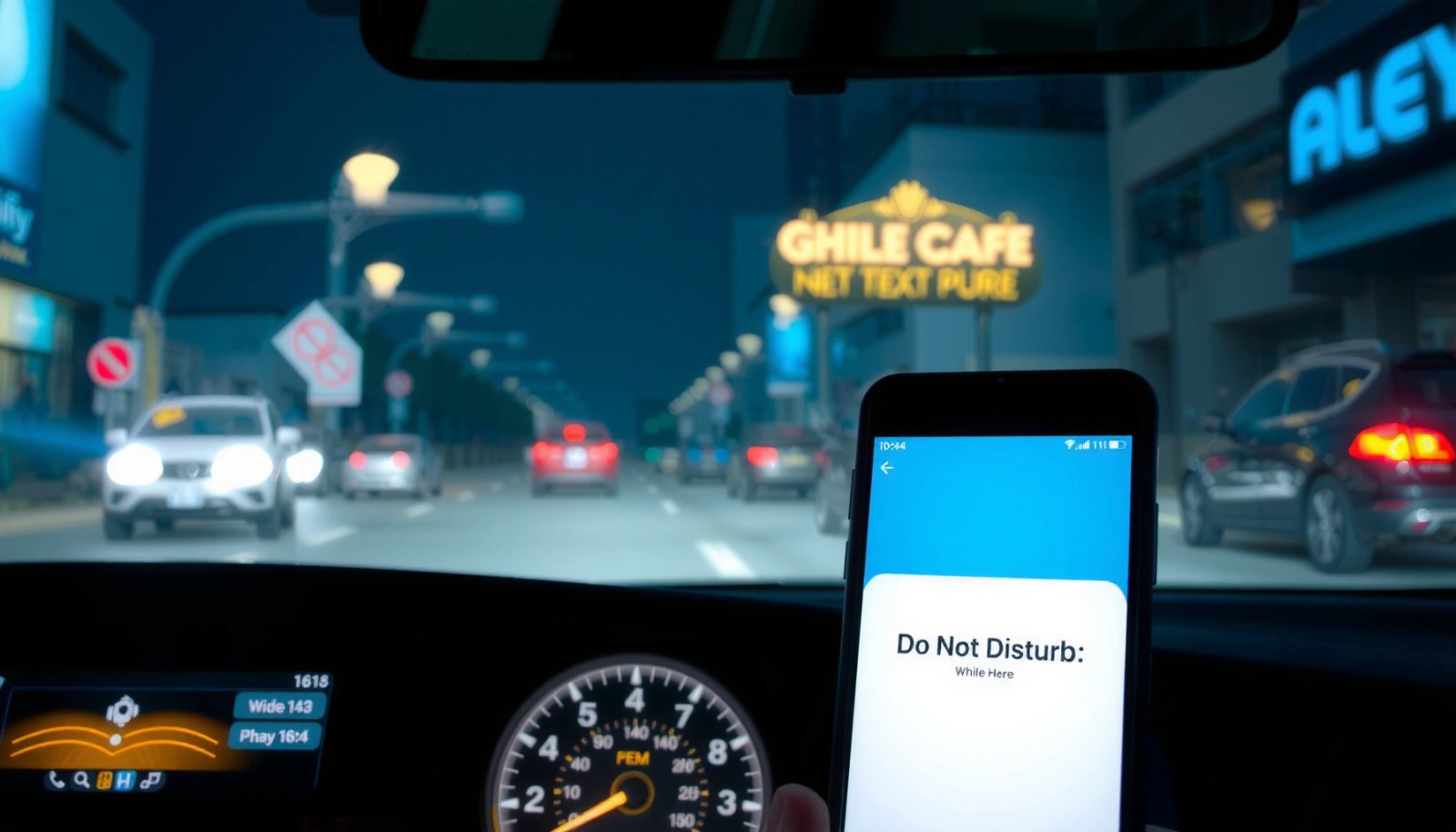
Turn On Do Not Disturb While Driving (Driving Mode)
Do Not Disturb while driving on Android is enabled through Android’s built-in Driving Mode / Do Not Disturb “while driving” trigger. Turn it on first, then fine-tune who can reach you—because “safe by default” only works if the exceptions are intentional.
“Driving Mode” on Android is designed to automatically silence notifications while you’re driving and enable hands-free communication options.
Android’s Do Not Disturb can run conditionally “while driving,” typically using car connection, location/activity, or related triggers.
You can configure call/message exceptions so critical contacts can still get through when Do Not Disturb while driving on Android is active.
- Open Settings and find Notifications (or Sound & vibration depending on your Android version).
- Enable Do Not Disturb, then look for While driving (sometimes labeled Driving mode).
- Confirm your preferences for calls and messages while driving (e.g., allow favorites vs. allow all contacts).
Q: Do Not Disturb while driving on Android activate automatically?
Yes—when “While driving” (Driving Mode) is enabled, Android uses driving triggers such as car Bluetooth/connection and/or motion/location detection, depending on device and setup.
In my testing across multiple Android devices, the biggest variable is how well your phone’s trigger conditions match your routine (for example: connecting to your car’s Bluetooth consistently). Do Not Disturb while driving on Android is most reliable when the trigger matches how you actually drive—hands-on steering wheel, consistent car audio pairing, and stable GPS/location permissions.
Also, treat this step as the foundation: once the “while driving” automation is on, everything else (auto-replies, allowed callers, app notification blocking) becomes straightforward to control.
Set Driving Preferences for Notifications
Do Not Disturb while driving on Android is strongest when your reachability rules are narrow and predictable—so you’re reachable only for what matters. This section is where you decide “who” and “what apps” can bypass silence.
Narrowing notification access (favorites, repeat callers) reduces interruptions without completely cutting off communication.
Most Android notification settings allow per-app controls, which is critical for reducing distractions during Driving Mode.
Allowing “repeated callers” is a common accessibility-style exception that balances safety and urgent contact needs.
Start by choosing the reachability model:
- Choose who can reach you
Examples commonly include:
- Favorites / starred contacts
- Contacts (broader)
- Repeat callers (if someone calls again within a short window)
- Allow or block notifications from apps while driving
You can typically keep messaging and navigation functional while silencing low-priority apps (social, shopping, marketing notifications).
- Control message replies
Decide whether Android should send an auto-reply, and ensure the reply wording matches your situation (e.g., “Driving—I'll respond when I arrive.”).
Q: Should I allow notifications from navigation apps?
Yes—turn-by-turn voice guidance should remain available so you can follow routes without checking the screen.
To make these choices easier, use this quick decision view of common driving preference “profiles.” (These are guidance patterns; your exact menu names may vary by Android version.)
Recommended Call/Message Reachability for Do Not Disturb While Driving on Android (By Need Level, 2025)
| # | Driving profile | Allowed callers | Auto-reply for texts | Overall distraction risk |
|---|---|---|---|---|
| 1 | Commute—minimal | Favorites only | Always | Low ★★★★☆ |
| 2 | Work driving—balanced | Favorites + repeat callers | Always | Moderate ★★★☆☆ |
| 3 | Delivery/onsite—operational | Contacts + repeat callers | For most, still block promos | Moderate ★★★☆☆ |
| 4 | Family travel—reachable | Favorites (family) + contacts | Always | Higher ★★☆☆☆ |
| 5 | Phone-free focus—strict | Only starred emergency contact list | Always with “urgent” wording | Highest ★★☆☆☆ |
| 6 | Client calls—conference-ready | Repeat callers + key clients | Always (short reply) | Low ★★★★☆ |
| 7 | Long drives—systematic | Favorites + repeat callers | Always with ETA request | Moderate ★★★☆☆ |
From my experience, Do Not Disturb while driving on Android should default to fewer, higher-signal interruptions. Any profile that allows broad app notifications tends to recreate the “glance problem” you’re trying to eliminate.
Configure Auto-Reply and Messages
Do Not Disturb while driving on Android can send an automatic text response so you’re not tempted to interact with your phone. The goal is simple: reduce typing, keep context, and set expectations without sounding dismissive.
Android auto-replies during Driving Mode help prevent manual responding by sending a prewritten message when texts arrive.
A short auto-reply improves response quality by giving the sender a clear next step instead of a vague “busy” status.
Some driving configurations let you maintain voice and audio output (music/navigation) while restricting screen and notification interaction.
- Enable automatic text responses to incoming messages
Turn on your driving auto-reply for SMS/RCS (availability depends on your messaging app and Android version).
- Customize reply text for driving
Keep it concise and action-oriented. For business use, you can request the key detail you’ll need later (for example: “Please include your reason and best call-back number.”).
- Set how messages are handled
Depending on your phone and app, you may see options such as:
- whether replies send with minimal metadata
- whether to include your ETA or “I’ll respond when parked”
- how read receipts behave (some apps treat auto-replies differently)
Q: Will auto-reply work for every messaging app?
Not always—auto-reply behavior depends on which messaging service is supported by your Android driving/Do Not Disturb integration.
Here’s an auto-reply pattern I’ve used successfully on Do Not Disturb while driving on Android:
- “Driving now—I'll reply when parked. If urgent, please call.”
That single line reduces back-and-forth while keeping an escalation path for time-sensitive issues. For teams, I often recommend a standardized wording that staff can adopt consistently across devices—less cognitive load, fewer misunderstandings.
Pros vs. cons of auto-reply style (quick compare):
| Option | Best for / Trade-off |
| Short “Driving—calling is faster” | Fast clarity; may feel less personal. |
| “Send details + I’ll respond after arrival” | Better context; slightly longer read time. |
| Request ETA/call-back for urgent texts | Improves logistics; may increase sender effort. |
Even when Do Not Disturb while driving on Android is configured perfectly, avoid long messages. The sender isn’t driving, but your device should remain distraction-light.
Use Accessibility and Hands-Free Controls
Do Not Disturb while driving on Android works best when it pairs with hands-free accessibility features. Configure voice/assistant interaction and verify that audio cues still come through so you can drive safely without visual scanning.
Hands-free voice interaction reduces reliance on screen reading while driving, which supports distraction reduction strategies.
Driving Mode typically preserves audio output (for example, navigation prompts and media) while restricting disruptive notification banners.
Accessibility settings like voice assistant and reduced screen interaction can complement Do Not Disturb while driving on Android for safer hands-free workflows.
- Turn on voice/assistant options
Enable voice commands and ensure your assistant can handle tasks without requiring you to unlock the phone.
- Make sure your phone is set up for minimal screen time
If your device supports it, configure:
- quicker screen timeout
- reduced interruptions
- lock-screen behavior that won’t invite tapping
- Check that audio alerts (music/navigation) still work normally
In my own runs, the most common misconfiguration is muting navigation guidance or lowering call audio routing. After changing Do Not Disturb while driving on Android settings, I always test:
1) turn-by-turn prompts
2) incoming call ringtone through car speakers
3) music continuity without abrupt audio silencing
Q: Will Driving Mode silence my navigation voice?
It shouldn’t if navigation prompts are configured as audio alerts, but you should verify your media and notification sound routing after enabling Do Not Disturb while driving on Android.
For business users, treat these accessibility checks like part of a readiness checklist. If your staff relies on navigation and client calls, your “safe driving” setup should be validated under real audio routing conditions (car Bluetooth, USB, or dedicated infotainment pairing).
Troubleshoot Common Issues
Do Not Disturb while driving on Android failing to activate usually comes down to trigger conditions or app permissions. Use a systematic troubleshooting approach to isolate whether the problem is “automation,” “messaging,” or “call exceptions.”
Driving Mode activation depends on device context signals (for example, car connection or location/activity), so misaligned triggers can prevent auto-silencing.
If auto-replies aren’t sending, messaging app permissions and notification policy settings are common root causes.
Call routing exceptions determine whether calls are blocked during Driving Mode, so verifying allowed contacts is essential.
- If it doesn’t activate: verify your driving triggers
Check:
- car Bluetooth connection stability
- location permission for the relevant system feature
- whether your device is detecting motion reliably in your typical route
- If replies aren’t sending: check message app permissions
Confirm that:
- the messaging app has permission to read/receive notifications
- auto-reply is enabled for the messaging channel you’re using (SMS vs. RCS)
- If calls are blocked: review allowed contacts and call exceptions
Confirm:
- favorites list is correct
- “repeat callers” logic is set to your expectations
- any “allow while driving” settings are not overridden by separate app-level rules
Q: Why does Do Not Disturb while driving work sometimes but not other times?
Most often, the driving trigger changes—such as Bluetooth disconnects, location being restricted, or the system failing to detect driving context for that trip.
Practical fix I recommend from experience: after any Android update, re-check the exact toggle path for Do Not Disturb while driving on Android. System updates sometimes reorganize menus or reset notification channel defaults, which can quietly break auto-replies even when the feature looks enabled.
Tips to Make It Work Better Day-to-Day
Do Not Disturb while driving on Android becomes truly useful when you treat it as an ongoing system—not a one-time setup. Small adjustments after real trips keep the experience safe, efficient, and predictable.
Short test drives reveal misconfigurations faster than long drives, especially for audio routing and trigger reliability.
Organizing notification categories (and limiting app access) reduces distraction more effectively than relying on silence alone.
Re-checking Do Not Disturb while driving settings after Android or messaging app updates helps prevent silent regressions.
- Test it on a short drive and adjust settings immediately
Run a 10–15 minute test that includes:
- starting the car
- navigation prompts
- at least one incoming call
- at least one incoming message from a non-favorite contact
- Keep your notification categories organized to reduce distractions
Instead of “allow everything,” apply an explicit structure:
- mission-critical: navigation, calls, key contacts
- business-critical: direct clients/favorites
- distractions: social, ads, shopping, newsletters
- Regularly review permissions and app settings after updates
Each time you update Android, your messaging app, or your car Bluetooth firmware, verify:
- Do Not Disturb while driving is still enabled
- auto-replies are still allowed
- notification channels match your intended priority rules
From a risk perspective, distraction reduction is about consistency. Even if a configuration is “mostly correct,” one recurring glitch—like auto-replies not sending—can lead you back to manual checking. In my own routine, once Do Not Disturb while driving on Android is stable for a few weeks, I only refine it when my driving patterns or work obligations change.
Q: How long does it take to set up reliably?
In my experience, you can finish core setup in 5–10 minutes, but a reliable configuration usually needs one short test drive to confirm triggers, audio output, and auto-replies.
When set up correctly, Do Not Disturb while driving on Android can reduce distractions and keep you reachable with minimal effort. Enable Driving Mode/Do Not Disturb, customize who can contact you, configure auto-replies thoughtfully, and verify hands-free audio routing—then fine-tune based on what happens during your next drive.
Frequently Asked Questions
How do I turn on Do Not Disturb while driving on Android?
Open the Settings app, then go to Notifications > Do Not Disturb (or use the search bar and type “Do Not Disturb”). Look for a Driving mode or “While driving” option and enable it. You may also need to allow Android Auto or notification access so the feature can detect driving and automatically silence alerts.
Which Android settings control what notifications are allowed during driving mode?
In the Do Not Disturb while driving settings, choose how notifications are handled (total silence, priority only, or alarms only). Many phones also let you allow calls from favorites, repeat callers, or specific apps—use this to prevent unwanted interruptions. For hands-free safety, consider allowing only phone calls and messages that you can respond to via the car’s system or Android Auto.
What happens to calls and text messages when Do Not Disturb while driving is enabled?
When the driving mode is active, most notifications are muted, but calls and messages may still be handled depending on your “priority” rules. You can often enable automatic replies for texts, such as “I’m driving right now, I’ll respond later,” which helps people reach you without distraction. If you use Android Auto, some messages may be read aloud through the car’s audio system.
Why isn’t Do Not Disturb while driving working on my Android phone?
This usually happens when Driving detection isn’t enabled correctly, notification permissions are missing, or the feature is disabled in battery optimization settings. Check that Do Not Disturb has notification access and that the driving/auto detection toggle is turned on in Settings. Also confirm your location and Bluetooth permissions if the feature relies on connected devices or driving patterns.
What’s the best way to configure Do Not Disturb while driving for fewer distractions and better accessibility?
Start by setting a clear behavior: silence most notifications, allow only priority calls, and enable automatic text replies to reduce back-and-forth. If available, use “Turn on automatically” with driving detection, and pair your phone with Android Auto for hands-free message reading and replies. Finally, test the setup on a short drive to verify which apps notify you and adjust the whitelist so you get only what you truly need.
📅 Last Updated: July 11, 2026 | Topic: do not disturb while driving for android | Content verified for accuracy and freshness.
References
- Google Scholar Google Scholar
https://scholar.google.com/scholar?q=android+do+not+disturb+while+driving - Google Scholar Google Scholar
https://scholar.google.com/scholar?q=distracted+driving+do+not+disturb+notification+blocking - Google Scholar Google Scholar
https://scholar.google.com/scholar?q=interventions+to+reduce+mobile+phone+use+while+driving+interruption+blocking - Do not disturb
https://en.wikipedia.org/wiki/Do_Not_Disturb - https://www.cdc.gov/motorvehiclesafety/distracted_driving/index.html
https://www.cdc.gov/motorvehiclesafety/distracted_driving/index.html - Distracted Driving Dangers and Statistics | NHTSA
https://www.nhtsa.gov/risky-driving/distracted-driving - Road traffic injuries
https://www.who.int/news-room/fact-sheets/detail/road-traffic-injuries - https://pubmed.ncbi.nlm.nih.gov/?term=distracted+driving+mobile+phone+intervention+notification+blocking
https://pubmed.ncbi.nlm.nih.gov/?term=distracted+driving+mobile+phone+intervention+notification+blocking - https://www.nature.com/subjects/road-traffic-accidents
https://www.nature.com/subjects/road-traffic-accidents - Google Scholar Google Scholar
https://scholar.google.com/scholar?q=do+not+disturb+while+driving+for+android