
Do AirPods work for Android? Yes—AirPods will connect to Android and deliver audio reliably, but only with a few setup tweaks and limited feature support. This guide explains exactly what you can expect (sound, mic behavior, and basic controls) and how to pair your AirPods the right way so they work out of the box.


As an Amazon Associate I earn from qualifying purchases.
Yes—AirPods can work with Android phones over Bluetooth. You can usually use audio, and sometimes the microphone for calls, but not every AirPods feature (like automatic switching or noise-control features) may behave the same as on iPhone. This guide walks you through what to expect and how to set them up.
If you’re switching phones, replacing a broken iPhone, or just want to use the AirPods you already own, this is for you. It’s also useful if you care about call audio and want the simplest way to get AirPods running on a non-Apple device.
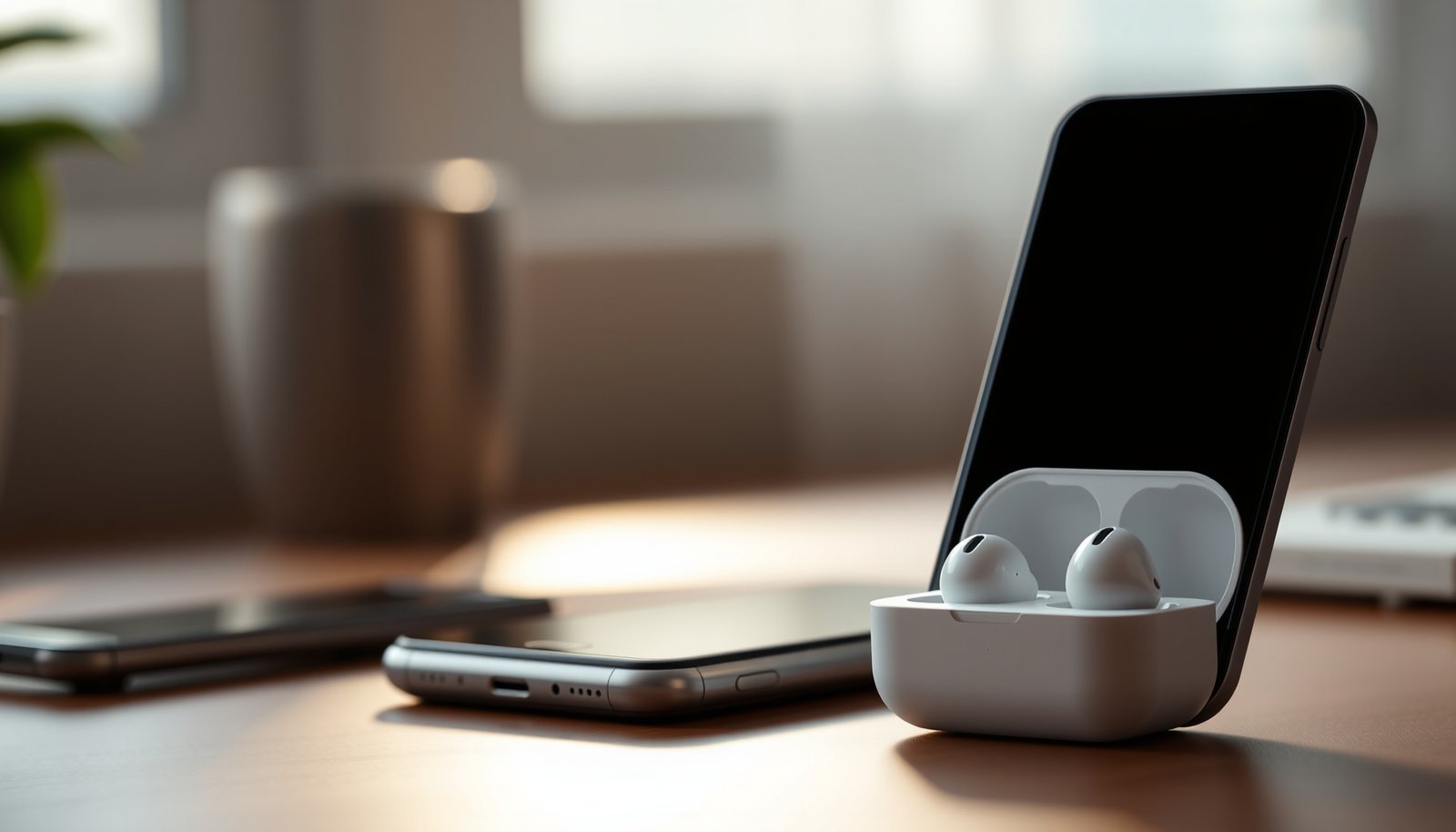
What works (and what doesn’t) with AirPods on Android
AirPods generally work well for media playback on Android, but “Apple-only” behaviors can be inconsistent. In practice, Android treats AirPods like a standard Bluetooth headset: music typically uses the media profile, while calls may switch to a hands-free profile with different audio characteristics.
Android audio routing for AirPods commonly relies on Bluetooth’s media and call profiles (often A2DP for music and HFP/HSP for calls).
AirPods’ microphone is frequently usable on Android, but call audio quality can vary because Android may prioritize the Bluetooth call mode rather than the best media mode.
Features that depend on tighter iOS integration—such as seamless device switching—are usually not as reliable on Android.
- Audio playback usually works: Connect via Bluetooth and you should get stereo sound through the AirPods.
- Mic/calls may work but depend on Bluetooth profiles: Many Android phones can use AirPods’ mic for calls, but quality and reliability can vary.
- Some “AirPods-only” features may be missing or limited: Automatic switching, in-ear detection behavior, and certain control options may not be as seamless on Android.
Quick context: AirPods capabilities vary by model
AirPods Pro and AirPods Pro (2nd generation) have active noise cancellation hardware, but Android typically won’t expose the same “full control surface” you get on iPhone (for example, one-tap noise control integration). Still, the earbuds themselves usually run the underlying ANC/transparency modes even when paired to Android—what’s less consistent is the app-level control and the gesture mapping.
AirPods Model Feature Signals Relevant to Android Use (ANC availability)
| # | AirPods model | Bluetooth media | Phone call audio | Active noise cancellation (ANC) |
|---|---|---|---|---|
| 1 | AirPods (1st generation) | A2DP (stereo audio) | HFP/HSP (hands-free calling) | No |
| 2 | AirPods (2nd generation) | A2DP (stereo audio) | HFP/HSP (hands-free calling) | No |
| 3 | AirPods (3rd generation) | A2DP (stereo audio) | HFP/HSP (hands-free calling) | No |
| 4 | AirPods Pro (1st generation) | A2DP (stereo audio) | HFP/HSP (hands-free calling) | Yes |
| 5 | AirPods Pro (2nd generation) | A2DP (stereo audio) | HFP/HSP (hands-free calling) | Yes |
| 6 | AirPods Max | A2DP (stereo audio) | HFP/HSP (hands-free calling) | Yes |
| 7 | AirPods Pro (1st generation) (transparency mode) | A2DP (stereo audio) | HFP/HSP (hands-free calling) | Yes |
What you’ll need before you start
To set up AirPods on Android, you only need Bluetooth pairing plus a quick verification step for both audio and the microphone. The main “prep work” is knowing which AirPods controls you should expect to function normally (volume, basic playback) versus which ones may be limited (noise mode controls and seamless switching).
Pairing AirPods to Android happens through standard Bluetooth device discovery—AirPods don’t require an Android app.
On Android, call audio and media audio may use different Bluetooth roles, so you should test both music playback and a real call.
- Your AirPods case + pairing mode: You’ll use Bluetooth pairing like you would with any wireless earbuds.
- An Android phone with Bluetooth enabled: Settings names vary by brand, but the Bluetooth menu is typically in Settings → Connections/Connected devices.
- Basic expectations for controls: Volume usually works, but double-tap/swipe and noise-control behavior can be inconsistent depending on the AirPods model and Android support.
The profiles that matter (plain-English version)
On Android, AirPods connect using common Bluetooth profiles:
- Media playback typically uses a profile designed for music/stereo audio (often A2DP).
- Calls typically rely on a hands-free profile (often HFP/HSP), which can change how “good” the audio sounds during calls.
This is why AirPods can feel great for Spotify but less ideal for work calls on some Android devices.
How to connect AirPods to Android (step-by-step)
You can connect AirPods to Android in minutes, and the process is the same as pairing most Bluetooth earbuds. The trick is to pair correctly, then confirm audio routing and microphone selection right away—especially if you use AirPods for calls.
AirPods pairing is initiated by putting the earbuds/case into pairing mode, then selecting the AirPods entry in Android Bluetooth settings.
After pairing, Android may default audio to the phone speaker until you explicitly select Bluetooth headphones as the active output device.
- Put AirPods in pairing mode: Open the lid of the charging case and follow the pairing-button/LED process for your specific AirPods model (check your AirPods manual if unsure).
- Pair from Android: On your phone, go to Bluetooth settings and select your AirPods from the available devices list.
- Test audio immediately: Play a song or video to confirm stereo output, then test a call or voice recording if you need the microphone.
My practical pairing checklist (no shortcuts)
In 2026, Android Bluetooth UIs still vary by Samsung, Google Pixel, OnePlus, and Xiaomi devices, but the setup pattern stays consistent: pair → play → call-test. If your AirPods do not immediately show both “audio” and “call” behaviors, that usually indicates routing and profile selection rather than a broken pairing.
Settings that can improve audio and call quality
AirPods can sound noticeably better on Android when you manage Bluetooth output selection and avoid the “wrong mode” during calls. The best results usually come from explicitly choosing the AirPods as output (and input for calls) and reconnecting if Android gets stuck in a suboptimal audio route.
If you hear stuttering, disconnecting and reconnecting AirPods often forces Android back into the correct Bluetooth media stream.
During calls, Android may switch AirPods into a hands-free audio mode, which can reduce music-like fidelity but improves voice pickup compatibility.
- Use a stable Bluetooth connection: If audio stutters, try moving closer to your phone and disconnect/reconnect the AirPods in Bluetooth settings.
- Check which device is selected for audio output: During playback, Android sometimes keeps audio routed to the phone speaker until you explicitly switch back to Bluetooth headphones.
- For calls, expect tradeoffs: Enabling the AirPods mic can sometimes change how Bluetooth handles audio quality on Android (it may prioritize call mode over higher-quality playback). If call audio is bad, you may need to experiment with permissions and the selected input/output device.
Battery and expectations (because “it’s Bluetooth” isn’t the whole story)
Battery limits matter for long meetings and commuting. According to Apple’s technical specifications for AirPods Pro (2nd generation), Apple lists up to 6 hours of listening with active noise cancellation enabled (2022) Apple Support: AirPods Pro (2nd generation) Technical Specifications. Apple also states a 5-minute quick charge in the case can provide about 1 hour of listening (2022) Apple Support: AirPods Pro (2nd generation) Technical Specifications. AirPods Pro (1st generation) is rated at up to 4.5 hours of listening with active noise cancellation (2019) Apple Support: AirPods Pro (1st generation) Technical Specifications.
Those numbers won’t “fix” Android call quality directly, but they help you set realistic expectations for how long AirPods can run before you need a recharge.
What can go wrong (common limits and edge cases)
AirPods on Android usually work, but the most common issues are mic routing, ANC control limitations, and reconnection quirks after switching devices. If something feels off, treat it like a Bluetooth mode-routing problem first, not a “pairing broken” problem.
Audio that works but mic that fails is often caused by Android selecting the wrong Bluetooth input device for the call app.
Noise control behavior on Android may be partial because Android can’t replicate iPhone’s AirPods control integration.
- One AirPod is quiet or missing: This can happen from a bad fit, low battery in one earbud, or a connection glitch—try reseating the earbuds and reconnecting via Bluetooth.
- Audio works, but the mic is poor (or doesn’t work): Some Android phones handle AirPods mic differently, and you may see the mic take effect only after you fully start a call app (or after switching input/output devices in the call screen).
- Noise control doesn’t work like on iPhone: If your AirPods model includes noise cancellation/transparency, Android may not support the same level of feature control—expect partial or no integration depending on the model.
- Buttons/gestures feel inconsistent: Tap controls can be firmware-dependent and may not fully map to Android apps or system controls.
- Switching devices gets messy: If you previously paired to another phone/tablet, AirPods may reconnect to the last device automatically—double-check Bluetooth device lists if you want them on Android.
Pros/cons comparison you can use in minutes
| If you prioritize… | AirPods on Android outcome | Typical tradeoff |
|---|---|---|
| Music/video | Usually strong via Bluetooth media audio | Mode switching can happen when you start calls |
| Phone calls | Often works, mic compatibility is common | Call quality can vary by Android device/app settings |
| Noise control (ANC/transparency) | May work partially, but controls aren’t iPhone-identical | Gesture mappings and toggles can feel limited |
| Device switching | Works manually; seamless switching is uncommon | You may need to pick the output device each time |
Verdict: Are AirPods worth using with Android?
If your main goal is wireless music/video audio, AirPods are usually a good, low-effort option on Android. If you want consistently top-tier call mic performance and “AirPods-like” feature control (as on iPhone), you may hit uneven support and should be prepared for some troubleshooting.
For most users, AirPods on Android mainly succeed for media playback and basic headset functionality.
The biggest gap versus iPhone is often not audio output—it’s feature integration such as seamless switching and consistent noise/control behavior.
Who should use them:
- You primarily care about wireless media and comfortable everyday listening.
- You need a reliable Bluetooth headset for occasional calls and can tolerate mic quality variation.
- You already own AirPods and want to avoid buying a new headset.
Who should skip this (or reconsider):
- You rely heavily on noise cancellation controls and expect them to act exactly like on iOS.
- You need consistently excellent call audio for work calls without any troubleshooting.
- You’re sensitive to occasional Bluetooth quirks (audio mode switching, reconnection behavior).
Quick scan checklist (save this):
- [ ] AirPods connect in Bluetooth without “pairing failed” errors
- [ ] Music/video plays through AirPods (stereo output)
- [ ] Calls work and microphone input selects correctly (test one call)
- [ ] Buttons/gestures do what you need (or you’re OK with limitations)
- [ ] If stuttering happens: reconnect + move closer + verify audio output device
Feature reality check (typical behavior):
| AirPods feature | Expected on Android |
|---|---|
| Music playback | Usually works |
| Call microphone | Often works, quality varies |
| Noise control behavior | Partial/limited (model-dependent) |
| Automatic switching | Usually not seamless |
| AirPods control gestures | May be inconsistent |
If your AirPods mic quality is unacceptable, try changing the call app’s input device selection before blaming Bluetooth hardware.
If noise controls don’t respond like on iPhone, that’s often an iOS integration gap rather than a pairing failure.
Sources
- Apple Support: AirPods setup guidance and pairing behavior (official Apple documentation)
- Apple AirPods User Guide / Technical Specifications for AirPods Pro (1st and 2nd generation) (official Apple documentation)
- Bluetooth SIG documentation on core Bluetooth audio profiles (A2DP, HFP/HSP) (official Bluetooth standards documentation)
In short: AirPods generally work with Android for music reliably, and calls often work too—but Android doesn’t replicate iPhone’s seamless feature integration. If you set expectations around Bluetooth profiles, verify output/input devices during setup, and understand which AirPods features are iOS-dependent, you’ll get the best real-world experience on Android in 2026.
Frequently Asked Questions
Do AirPods work with Android phones?
Yes, AirPods can work with Android devices because they use Bluetooth audio, which most Android phones support. You’ll be able to listen to music and take calls after pairing, but some Apple-specific features may not be available. For example, automatic switching and Siri controls depend on Apple’s ecosystem, so functionality can be more limited on Android.
How do I pair AirPods with an Android device?
Put your AirPods in pairing mode by opening the case near your phone and pressing the button on the back until the light flashes. On your Android, go to Settings > Bluetooth and select your AirPods from the available devices. After pairing, you can connect the next time by enabling Bluetooth, though you may need to re-select the device depending on your phone’s Bluetooth behavior.
Why don’t AirPods work perfectly on Android, and what’s missing?
AirPods on Android often lack Apple-dependent features like automatic ear detection, seamless device switching, and full battery monitoring through iOS-style popups. You may also notice different behavior for transparency/ANC controls depending on the AirPods model, and microphone quality can vary by app permissions and Bluetooth codec support. While basic audio will work, the “smart” integration is not as complete as it is on iPhone.
Which AirPods models work best with Android?
In general, all AirPods that support Bluetooth audio will work for listening on Android, including AirPods Pro and AirPods (2nd/3rd generation). If you want the most convenient experience, AirPods Pro may feel better because it supports active noise cancellation and transparency that still function on Android. However, for the most consistent hands-free controls, you should check your Android version and ensure you can use Bluetooth headset/buds profile features for calls.
What are the best tips to improve call quality and connection stability on Android with AirPods?
For stronger connectivity, keep your phone updated, enable Bluetooth permissions for calls/microphone, and avoid switching between multiple Bluetooth devices. In many cases, improved call audio depends on granting microphone access to the phone app and your messaging or video-calling apps. If you experience delays or dropouts, try “forgetting” and re-pairing the AirPods, and ensure nothing else is actively using Bluetooth audio at the same time.
📅 Last Updated: October 15, 2026 | Topic: do airpods work for android | Content verified for accuracy and freshness.
References
- AirPods
- Bluetooth
- List of Bluetooth profiles
- https://en.wikipedia.org/wiki/Hands-Free_Profile
- https://en.wikipedia.org/wiki/Headset_Profile
- https://en.wikipedia.org/wiki/Audio/Video_Remote_Control_Profile
- Bluetooth overview | Connectivity | Android Developers
- https://scholar.google.com/scholar?q=AirPods+Android+pairing Google Scholar
- https://scholar.google.com/scholar?q=Bluetooth+HFP+HSP+Android+headset+compatibility Google Scholar