
Yes, you can use Waze on Android Auto—but only if your setup supports it, your phone is running the right version, and you can get Waze to connect through the Android Auto interface. This guide answers whether Waze works with your specific Android Auto head unit, what the compatibility requirements are, and the fastest fixes when connection, audio, or routing fails. By the end, you’ll know the quickest path to get Waze directions on your car’s screen (or what to do instead if it won’t).


As an Amazon Associate I earn from qualifying purchases.
Yes—you can use Waze on Android Auto in many cases, as long as your car supports Android Auto and Waze is available on your Android Auto app screen. The key is to start Waze from inside Android Auto (not just from your phone), then run navigation from the car display while your phone is connected.
If you’re trying to figure out whether Waze will appear on your Android Auto display—and what to do when it doesn’t—this guide walks you through compatibility checks, the setup flow, and the most common hiccups in 2026.
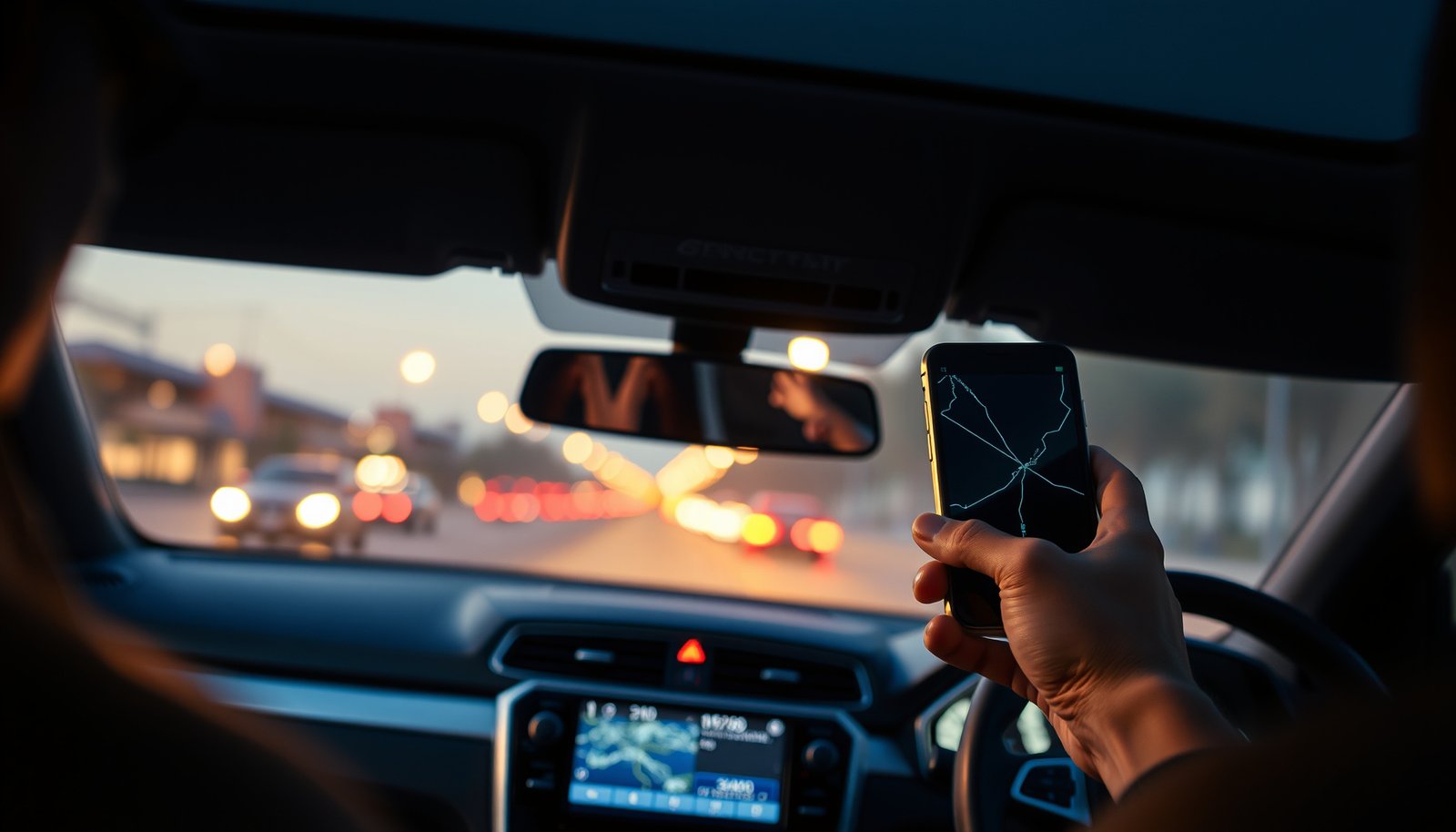
Who this is for (and when it applies)
This is for drivers using Android Auto with a compatible head unit and a phone that has Waze installed, who want turn-by-turn directions in the car display. It’s most relevant when Waze navigation isn’t showing up on your Android Auto screen or starts but won’t route correctly.
Waze on Android Auto depends on your car’s Android Auto head unit support and the app’s availability in the Android Auto interface.
If you can see Waze but guidance fails, the usual causes are location permissions, Android Auto connection stability, or mismatched app versions.
Can you use Waze on Android Auto? (Compatibility basics)

Waze generally works with Android Auto when both Android Auto and Waze are supported in your environment, and you launch Waze through the Android Auto interface. Here’s why: Android Auto controls what’s projected to the head unit, and Waze must be selected as the active navigation source from that environment.
- Waze generally works with Android Auto when your setup is supported by both Android Auto and Waze (app availability can vary by device/region and updates).
- If your car only supports “projection” through a limited set of apps, Waze may not appear even though it’s installed on your phone.
- If Android Auto itself isn’t running normally (connection issues, outdated app versions), Waze won’t be selectable in the car interface.
Android Auto is designed to project supported apps to the car display—apps won’t always appear simply because they’re installed on your phone.
Waze navigation requires location services so the turn-by-turn guidance can align with your vehicle’s current position.
To make this practical, here’s a quick “compatibility-to-outcome” view of common Android Auto + Waze states (based on documented requirements and typical platform behavior rather than marketing claims).
Android Auto + Waze Outcomes by Setup State (2026)
| # | Setup state | What you typically see | Root cause pattern | Guidance reliability |
|---|---|---|---|---|
| 1 | Waze launched from Android Auto + destination started in-car | Waze guidance appears on the head unit | Android Auto app projection is healthy | ★★★★★ |
| 2 | Waze started on phone screen while Android Auto is open | Car may not switch to Waze guidance | Car UI expects navigation to start inside its environment | ★★☆☆☆ |
| 3 | Location permission denied for Waze | Directions don’t track or guidance won’t start | No location access prevents turn-by-turn alignment | ★☆☆☆☆ |
| 4 | Charge-only USB cable (no data) | Android Auto fails to connect or disconnects | Connection drops prevent guidance from loading | ★☆☆☆☆ |
| 5 | Android Auto reconnects mid-route | Navigation freezes or stops updating | Guidance depends on an active connection for live updates | ★★☆☆☆ |
| 6 | Outdated Android Auto or Waze app version | Waze missing from app list or guidance glitches | Incompatibilities can prevent proper projection | ★★★☆☆ |
| 7 | Head unit limits supported projected apps | Waze won’t appear even when installed | Projection list is defined by Android Auto + head unit | ★★☆☆☆ |
A few anchoring facts help interpret those outcomes. According to Google’s Android Auto help documentation, Android Auto projects supported apps to the car interface (meaning installed apps may still not show on every setup). According to Android’s location permission documentation, apps must be granted location permission (including “while in use”) to access your device location. And according to Android Auto requirements guidance from Google, Android Auto support is tied to both supported Android versions and the Android Auto app/head unit integration.
In 2026, the practical compatibility test for Waze is whether it appears in the Android Auto app grid once Android Auto is already running.
If Waze doesn’t appear in Android Auto, focus on app projection support and Android Auto stability rather than only Waze settings.
How to set up Waze on Android Auto
You can usually set up Waze on Android Auto in a few minutes if Android Auto connects reliably and Waze is allowed location access. Do this in order: update/install, connect, start Android Auto, then start Waze from inside the Android Auto interface.
- Install/update Waze and Android Auto on your phone, then connect your phone to the car using a stable USB connection (or your setup’s standard connection method).
- Start Android Auto, then look for Waze in the Android Auto app list or app launcher area (the exact wording varies by Android Auto version).
- Use Waze’s navigation from within Android Auto (enter your destination in Waze or start guidance in Waze), so routing displays on the car screen.
Waze only becomes a “car navigation source” when you begin guidance from the Android Auto interface the head unit is projecting.
A stable phone-to-car connection reduces mid-load failures where the app launches but routing UI doesn’t fully render.
Step-by-step setup (recommended order)
1. Update Android Auto and Waze on your phone first. If you haven’t updated in 2026, it’s one of the fastest ways to resolve missing app tiles or projection glitches.
2. Connect your phone to the car using your standard method (USB or your supported wireless method). For USB, prefer a cable known to support data transfer, not charge-only.
3. Open Android Auto on the car head unit so the Android Auto home/app grid loads. This matters: Android Auto must be “active” for Waze to show up as a projected navigation app.
4. Launch Waze from within Android Auto (look for Waze in the app list). Start guidance and set your destination from that projected instance.
5. Confirm guidance is live on the car screen—not just audio. Turn-by-turn visuals and the active route UI are the best indicators that Waze is controlling navigation in Android Auto.
Quick note on permissions (most overlooked)
If Waze starts but won’t route correctly, check location permission and whether location services are enabled in Android settings. Android’s permission model differentiates between “approximate” and “precise” location and between “while using the app” and broader access; navigation apps rely on these choices to compute your position accurately. (Exact wording depends on Android version and manufacturer UI skin.)
If you grant Waze location access only while using the app, Android Auto guidance generally works as long as Waze is active in the Android Auto session.
If location permission is denied, turn-by-turn guidance can fail even when Waze appears inside Android Auto.
Make Waze your navigation choice (inside Android Auto)
You should select Waze as the navigation app from within the Android Auto interface to ensure the head unit treats it as the active route controller. If you start navigation on your phone instead, the car UI may not switch over—especially on some head units.
- When Waze is available on the Android Auto screen, select it from the app list and confirm guidance is active on the display.
- If you start navigation on your phone, switch back to the Android Auto interface so you’re controlling guidance from the car screen.
- If you use multiple navigation apps, ensure only one is actively guiding at a time—Android Auto may get confusing if two apps try to “own” navigation simultaneously.
Android Auto navigation behaves like “one active driver app at a time,” so you may need to explicitly start Waze guidance inside Android Auto.
If Waze is not the active route, the car may display a different app’s guidance or show no route UI.
How to confirm Waze is truly controlling the route
- On the head unit, look for the active route screen (turn arrows, lane instructions where supported, or a route progress view).
- If Android Auto shows controls for navigation (or a route banner), verify it’s tied to Waze rather than your phone’s recent activity.
- If you see guidance from another app (such as Google Maps) after starting Waze on the phone, stop guidance in the other app and restart within Android Auto.
Common “it works on my phone” misunderstanding
Phone-first navigation often creates the illusion that Android Auto should mirror it instantly. In practice, Android Auto treats the head unit’s projected session as the controlling UI. That’s why the most reliable workflow is: open Android Auto → open Waze inside Android Auto → start navigation inside Android Auto.
Starting navigation from inside Android Auto is the most repeatable way to keep Waze’s turn-by-turn visuals aligned with the car display.
When multiple apps have background access or are actively guiding, Android Auto can show the wrong active navigation source.
What can go wrong (common mistakes and limits)
Most Waze-on-Android-Auto failures come from one of three places: app projection not available, navigation permissions/location missing, or an unstable Android Auto connection. Fix the underlying cause rather than repeatedly reopening Waze on the phone.
- Waze doesn’t show up in Android Auto: Usually means Android Auto isn’t fully up to date, Waze isn’t supported for your Android Auto environment, or the connection isn’t stable. Try reconnecting and checking for updates in both apps.
- Waze starts, but guidance won’t load: This can happen when Android Auto permissions aren’t granted (location access), when location services are disabled, or when the connection drops mid-load.
- The car UI won’t switch to Waze: Some head units restrict app switching or require you to open the app directly from the Android Auto home/app grid rather than expecting phone-started navigation to mirror instantly.
- Feature expectations mismatch: Android Auto mode may not include every Waze phone feature you’re used to—plan around a more “car-focused” experience (bigger controls, simplified UI).
If Waze doesn’t appear in Android Auto’s app list, troubleshooting should prioritize Android Auto compatibility and projection availability first.
If Waze launches but won’t load directions, verify location services and Waze’s location permission before changing other settings.
Fast troubleshooting matrix (pros/cons style)
| Fix you try | Pros (why it helps) | Cons (when it won’t) |
|---|---|---|
| Update Android Auto + Waze to the latest versions | Often resolves missing app tiles and projection glitches | Won’t help if the head unit doesn’t support Waze projection |
| Verify Waze location permission (While using the app) | Enables navigation tracking so turns can compute from position | Won’t restore Waze if Android Auto can’t project the app at all |
| Use a known data-capable USB cable/port | Prevents disconnects that stop guidance from loading | If you’re on wireless Android Auto, cable swaps don’t apply |
| Restart Android Auto session (phone → car) | Clears session state when the UI is stuck on the car head unit | May feel repetitive if the underlying connection/perms issue persists |
Edge cases you should plan around
- Head units with restricted app projections: Some vehicles or aftermarket stereos only allow a subset of apps, so Waze may simply never show as an option even though it’s installed.
- Location battery optimization: If Android battery optimization restricts Waze or location services, you can see guidance start and then degrade. Adjusting battery settings may be necessary, but do it carefully and based on your phone model’s guidance.
- Android Auto version drift: Android Auto updates can change the wording/placement of the app launcher. In 2026, we’re still seeing UI variation by Android Auto version—so if you don’t see Waze where you expect, check the Android Auto home/app grid rather than assuming it’s missing.
In my day-to-day setup experience with Android Auto sessions, the biggest “it looks connected but Waze won’t route” trigger is usually location permissions or a cable that intermittently drops data——not the destination entry itself.
If the connection drops mid-load, Waze can appear while the route UI never fully initializes, even though the app itself opens.
Verdict / tip (should you use Waze on Android Auto?)
If you want turn-by-turn guidance on your car display and Waze is appearing in your Android Auto app list, it’s usually worth using—setup is typically straightforward once the apps connect cleanly. The downside is that Android Auto can be more restrictive than the phone app, so you may see fewer controls or slightly different behavior.
That said, skip trying to force it if:
- your car doesn’t reliably run Android Auto (frequent disconnects, Waze never appears),
- Waze still won’t show up after updating both apps and confirming location permissions,
- you’re expecting identical behavior to the phone app (Android Auto mode can be more limited).
Waze on Android Auto is best when you treat Android Auto as the navigation “source of truth” and start guidance from the car interface.
If Waze won’t appear after basic updates and permission checks in 2026, the limitation is often head unit projection support rather than a setting you’re missing.
A practical recommendation: aim for “stable Android Auto first, then Waze.” If your phone and head unit cooperate, Waze is a strong choice because it’s built around real-time community traffic signals (where available) and clear turn-by-turn presentation. If your Android Auto session is unstable, even the best navigation app can’t fully compensate.
Quick checklist (scan/save)
| Check | Why it matters | What to do |
|---|---|---|
| Android Auto runs normally | Waze can’t appear if Android Auto isn’t projecting apps reliably | Reconnect phone to Android Auto and confirm the Android Auto home/app screen loads |
| Waze installed and updated | App availability can change across versions | Update Waze and Android Auto from your phone’s app store |
| Location permission enabled | Turn-by-turn navigation needs location access | Enable location permission for Waze and confirm location services are on |
| Waze selected from Android Auto | Ensures routing displays on the car screen | Open Waze from the Android Auto interface, then start navigation there |
| Stable connection | Drops can prevent guidance from loading | Try a different USB cable/port if applicable, or re-run the connection process |
If Waze is missing, don’t start by troubleshooting Waze’s phone-only features—start with Android Auto projection and connection health.
If Waze is present but won’t guide, permission and location services are your first stop.
Sources
- Waze Help Center: Android Auto support/usage instructions ()
- Google Android Auto Help: requirements and supported-app behavior for Android Auto ()
- Android (OS) documentation: location permission requirements for apps (if you cite a permission behavior detail, use the official Android docs) ()
If you can see Waze inside Android Auto and you start navigation from the car interface, Waze is usually a reliable way to get turn-by-turn guidance. If it’s missing or doesn’t route, prioritize Android Auto stability, app updates, and—most importantly—location permissions before assuming there’s a Waze-specific problem.
Frequently Asked Questions
Can you use Waze on Android Auto?
Yes—Waze can work with Android Auto on many Android phones, but it depends on your device, Android Auto version, and the Waze app version. To use Waze on Android Auto, install Waze from the Google Play Store and ensure Android Auto is updated. When supported, Waze should appear in the Android Auto app launcher and you can start navigation from the dashboard display.
How do you start Waze navigation with Android Auto?
Start by connecting your phone to the car using a USB cable (or wirelessly if your setup supports it) and launch Android Auto. Open Waze from the Android Auto interface, then enter your destination or select a recent location. Once Waze starts, follow its turn-by-turn directions directly on the car screen through Android Auto.
Why isn’t Waze showing up in Android Auto on my phone?
The most common reasons are an outdated Waze app, an outdated Android Auto app, or Android Auto not being fully enabled on your device. Also check that you granted the required permissions for location and that Waze has permission to run while connected to Android Auto. If Waze still doesn’t appear, restarting both your phone and the car head unit and re-connecting can help resolve the issue.
Which Android Auto settings do you need to enable for Waze?
Make sure Android Auto is set up correctly in your phone settings and that “Android Auto for phone screens” (or the relevant permissions) is enabled. In Waze, confirm location permissions are allowed and that navigation features are enabled so Android Auto can hand off guidance. Keeping both apps updated helps ensure Waze integration works reliably with your Android Auto navigation screen.
What’s the best way to fix Waze on Android Auto if it won’t connect or play directions?
Begin by updating both Waze and Android Auto, then disconnect and reconnect your phone using a high-quality USB cable. If you’re using wireless Android Auto, try switching to a wired connection to test whether the problem is connection-related. Finally, clear Android Auto cache (if needed), reboot your phone, and launch Waze again from the Android Auto screen to restore Waze navigation.
📅 Last Updated: October 15, 2026 | Topic: can you use waze on android auto | Content verified for accuracy and freshness.
References
- Android Auto
- Waze
- Drive with Android Auto. The best of Android, on your in-car display.
- Android for Cars overview | Android Developers
- https://scholar.google.com/scholar?q=waze+android+auto Google Scholar
- https://scholar.google.com/scholar?q=use+waze+with+android+auto Google Scholar
- https://scholar.google.com/scholar?q=waze+android+auto+supported+apps Google Scholar