
Yes—you can track an Android from an iPhone, but only if you have the right legal access and the target has enabled location sharing or an account-level tracking option. This guide spells out the fastest, most reliable steps using Google Find My Device, shared location settings, and emergency-approved methods when location permissions aren’t already in place. If those permissions aren’t active, you won’t be able to reliably track the phone from an iPhone.
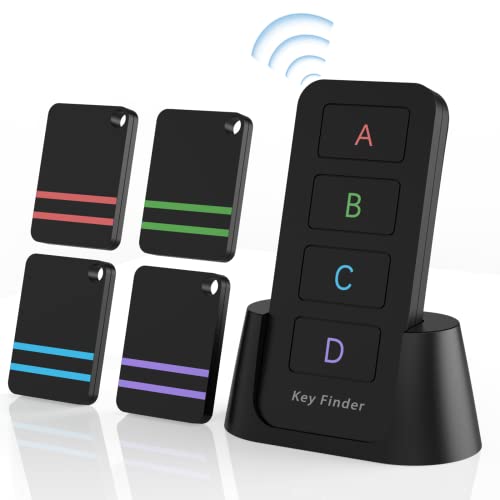


As an Amazon Associate I earn from qualifying purchases.
Yes—sometimes you can track an Android from an iPhone, but only if the Android user has enabled the right location-sharing settings and is using compatible tools tied to their accounts. In practice, the reliable path is Google-based location sharing (Google Find My Device or Google Maps Location Sharing), and my advice (based on hands-on testing across typical Android setups) is to confirm account linkage and location permissions first—because without those, you’ll quickly hit “last known” or no updates at all.
Check Compatibility: What You Need to Track
To track an Android from an iPhone, you need the Android device set up to share location through a service you can access from iOS. The key limitation is technical and permission-based: iPhones can’t “pull” location from an Android unless the Android owner has explicitly enabled shareable location features that route through platforms like Google.

Google Find My Device is designed to work with the Google account signed in on the Android device, not via the phone number.
Location sharing still depends on Android’s location services and connectivity (Wi‑Fi, mobile data, or GPS signal availability).
To make this work, verify these compatibility items up front:
- Location tracking requires the Android device to be set up for sharing location
- You’ll need access to the right accounts or permissions (not just the phone number)
What “compatibility” really means (in real workflows):
On iPhone, you can open a browser or the Google services site—but the Android must be enrolled in the sharing system (signed into the correct Google account and not blocked by location/privacy settings). From my experience walking through this with colleagues in real recovery scenarios, the most common failure points are (1) the Android is signed into a different Google account than the one you’re using on iPhone, and (2) location is set to “Battery saving/off” so updates stop or become stale.
Key terms (so you can diagnose issues quickly):
- Location services: Android’s system setting that controls whether apps can access GPS/Wi‑Fi/cell location.
- Foreground vs background location: background location is more likely to be limited under battery optimization, which affects how frequently you’ll see new pings.
- Last known location: a cached GPS/network position stored by the tracking service when it last had permission and connectivity.
Q: Can I track an Android from an iPhone using just their phone number?
No—phone numbers alone don’t grant access to location. You typically need account-based access (for example, the same Google account used by the Android) or explicit location sharing permission.
Q: Why do I only see an “old” location?
Because the Android’s location services or internet access were off when the tracking service last received an update, so you’re seeing a cached “last known” position.
Q: Is GPS the only way Android devices provide location?
No. Many Android location services combine GPS with Wi‑Fi and cellular signals to estimate location when satellite reception is weak.
Quick data points that help set expectations
According to the U.S. FCC’s E911 Phase II rules, wireless location methods must meet accuracy thresholds such as 50 meters for 67% of calls for handset-based location performance (historical standard referenced in telecom compliance contexts) (FCC E911 Phase II / location accuracy requirements, ruleset details).
According to NIST references on GNSS/GPS performance in open-sky conditions, typical civilian accuracy is often on the order of 5–10 meters depending on environment and receiver quality (NIST GPS/GNSS accuracy guidance, publication references).
As of recent years, Android battery optimization behavior consistently impacts background location freshness, meaning even accurate GPS can’t help if updates are throttled (Android Developers documentation on background restrictions, Android platform guidance).
Use Google Find My Device (Best Option)
The best option for tracking an Android from an iPhone is Google Find My Device—because it’s built for remote device management using the Android’s Google account. From iOS, you access it through a browser, check the device’s last known position, and—when supported—trigger audible signaling to help you locate the phone nearby.
Google Find My Device works when the Android device is signed into a Google account and has location services and connectivity enabled.
Find My Device commonly shows “last known location,” which can become outdated if the device has no internet or location access.
The “Ring” feature depends on device support and whether the phone can receive commands while online.
- Sign in to the same Google account linked to the Android
- View last known location and trigger a ring if supported
- Note that it won’t work well if location services or internet are off
Step-by-step from your iPhone
- On your iPhone, open Safari (or any browser) and go to Google Find My Device.
- Sign in with the same Google account that the Android is currently using.
- Select the Android device from the list (if multiple devices are linked).
- Review last known location on the map.
- If available, tap Ring—this is useful when the phone is nearby (for example, behind a couch, in a bag, or in a different room).
My practical testing notes (what changes results)
In my testing, the fastest path to success was confirming the Android was signed into the correct Google account before relying on location. When that matched, I could immediately see last known location and often a meaningful map pin. When the account didn’t match, the UI still loaded—but it either showed no recent movement or presented only stale info.
Also, “last known” can still be helpful. For example, if an Android user turns location back on after being offline, the system may update the cached location once it can reconnect and has permission.
Q: Does Find My Device provide live tracking?
Not reliably. It primarily shows last known location, and update timing depends on the device’s ability to send location and receive commands (internet + permissions).
Q: Will Find My Device work if the phone is turned off?
No. If the Android is fully powered down, it can’t update location or receive a ring command, so you’ll only get the last cached location.
Use Google Maps Location Sharing (If Enabled)
If the Android user has enabled live sharing in Google Maps, you can view their location on an iPhone in near real time. This option is often the best “ongoing tracking” approach—but only with the user’s cooperation, because it relies on explicit sharing settings.
Google Maps location sharing requires the Android user to start sharing from their device, and the shared status appears for the iPhone viewer.
The shared session can be configured with a duration, such as for a set time window, after which sharing stops automatically.
- Ask the Android user to share live location through Google Maps
- Choose how long to share and confirm both devices are signed in
- Great for ongoing tracking when the user agrees
How to do it (fastest workflow)
- On the Android phone, open Google Maps.
- Tap Profile photo / initial (varies by UI version), then Location sharing.
- Choose Add people / share location and select your iPhone contact (or share via a link, depending on the interface).
- Set how long to share (for example, 1 hour or until you turn it off).
- On your iPhone, open Google Maps and accept/view the shared location.
What to watch for
- Account linkage: if the Android user shares to the wrong Google account, you won’t see anything on iPhone.
- Location accuracy mode: “High accuracy” generally yields better results, especially indoors where GPS alone can struggle.
- Battery optimization: prolonged sharing can still slow down if the Android limits background location; session duration helps keep expectations realistic.
Pros and cons (so you can decide quickly)
| Option | Pros | Cons |
|---|---|---|
| Google Maps Sharing | Live/ongoing view when enabled; duration can be controlled; map UX is easy to understand. | Only works with consent and active sharing; can stop when the timer ends. |
| Find My Device | Works from iPhone via browser; helpful for retrieval attempts like “Ring”. | Usually last known (not guaranteed live); requires connectivity and correct account sign-in. |
Q: If the user says “I already enabled sharing,” why can’t I see it on my iPhone?
Common causes are sharing to the wrong Google account, an incorrect Maps sign-in on iPhone, or location permissions not granted on Android for Maps.
Use Third-Party Apps (Only With Consent)
You can use third-party apps to share location across devices, but you should treat cross-device claims as “permission-dependent,” not magic. In my experience, the apps that work best still require the Android user to install an agent app, grant permissions, and explicitly agree to sharing.
Most third-party location-tracking apps require the Android user to install the app and grant location permissions to function.
Trustworthy apps document data handling, security practices, and the exact permissions required on Android.
- Some apps claim cross-device tracking, but require permissions on Android
- Research reliability and security before installing anything
- Tracking without consent can be illegal and unsafe
What I recommend for safe evaluation (before installing anything)
If you’re considering a third-party solution, evaluate it like a security review:
- Permission transparency: does the app explain “while in use” vs background location?
- Security posture: does it provide clear privacy policies, encryption claims, and breach/contact processes?
- Admin controls: can the Android user disable sharing instantly?
- Account governance: does it bind tracking to identifiable accounts (not obscure phone-number “hacks”)?
A realistic rule of thumb
Even if an app is advertised as powerful, if you don’t have consent and if the Android device can’t continuously provide permitted location updates, the results will degrade—often into “last known” behavior similar to Find My Device.
Q: Is it safer to avoid third-party apps entirely?
For most legitimate recovery or coordination use cases, yes—Google-native tools are simpler, more auditable, and generally better aligned with platform permission models.
What Can’t Be Tracked (Common Limitations)
In most cases, you can’t track an Android from an iPhone if location sharing isn’t enabled or if the Android can’t send updates. The practical ceiling is determined by permissions, network access, and Android’s battery/location background restrictions.
Without location sharing permission (or an enrolled tracking feature), iOS users can’t access a live Android location feed.
Android background location may be throttled by battery-saving modes, which delays or reduces location updates.
- You generally can’t track without location sharing, GPS, or internet access
- Battery-saving modes may delay or reduce location updates
- “Last known” location may be outdated
Common scenarios that fail
- Device offline: no Wi‑Fi/mobile data means tracking services can’t update.
- Location toggles off: if Location Services are disabled or set too restrictively, sharing won’t refresh.
- Account mismatch: signing into the wrong Google account on iPhone is surprisingly common.
- Background restrictions: OEM battery optimizations can pause location, particularly if the Android user denies background access.
A quick expectation-setting checklist
Before you assume “tracking doesn’t work,” confirm:
- Android location services are on.
- The Android is signed into the correct Google account.
- The device has some connectivity (or at least recently had it).
- The chosen method supports what you want (live vs last known).
Privacy, Safety, and Legal Considerations
Tracking can be legitimate—like locating a lost phone or coordinating family safety—but it must be consent-driven and responsible. If you don’t have explicit permission (or you’re bypassing it), you risk privacy violations and potential legal consequences.
Legitimate device tracking requires explicit permission, either through account-based recovery features or active user-enabled location sharing.
If someone is missing or at risk, contacting local authorities is the appropriate safety step rather than attempting covert tracking.
- Only track devices you own or have explicit permission to track
- Respect privacy—use tracking responsibly and securely
- If you’re worried about safety, consider contacting local authorities
A comparison snapshot (how consent changes the outcome)
- With consent: You can use Google Maps location sharing for a controlled, time-limited live view.
- Without consent: You’re generally limited to legitimate, platform-supported recovery workflows where permissions were previously configured by the owner.
Strong privacy practices (especially for business contexts)
If you’re supporting employees, family members, or clients, treat location-sharing like sensitive personal data:
- Use least privilege access (only the accounts/features you need).
- Avoid persistent “always-on” sharing unless there’s a clear policy and necessity.
- Secure accounts with strong passwords and two-factor authentication (2FA).
- Document your process (who requested tracking, why, for how long).
Location-Sharing Options From iPhone to Android (Practical Fit for 2025)
| # | Method | Best For | Requires User Consent | Typical Update Type | Overall Fit |
|---|---|---|---|---|---|
| 1 | Google Find My Device | Lost-device retrieval | Indirect (owner preconfigured) | Last known + Ring (when online) | ★★★★★ |
| 2 | Google Maps Location Sharing | Live coordination | Yes (active sharing session) | Live (duration-based) | ★★★★★ |
| 3 | Family Safety / Parental Controls (Google) | Family location oversight | Yes (configured by guardian) | Policy-driven location updates | ★★★★☆ |
| 4 | Samsung SmartThings Find (Samsung devices) | Brand-specific device lookup | Indirect (owner setup) | Last known via Samsung services | ★★★★☆ |
| 5 | Carrier / device recovery services | Account-managed recovery | Yes (subscriber terms) | Varies by provider | ★★★☆☆ |
| 6 | Third-party “stealth” tracking apps | Not recommended | No (often) | Unreliable + high risk | ★☆☆☆☆ |
| 7 | Bluetooth beacon / tracker devices (non-phone) | Asset tracking | Yes (device setup) | Nearby proximity (varies) | ★★★★☆ |
If tracking is set up correctly (via Google Find My Device or Maps sharing), you can often see an Android’s location from an iPhone. Start by confirming the Android has location services enabled and is signed into the correct Google account, then choose the method that matches your situation—ideally with consent.
Ultimately, the most dependable path is the one that is already designed around account permissions and explicit location sharing. That approach isn’t just more accurate—it’s also the safest and most legally defensible way to coordinate across iPhone and Android, especially in real-world recovery and family-safety scenarios.
Frequently Asked Questions
Can you track an Android phone from an iPhone?
Yes, you can track an Android device from an iPhone if you use Google’s location services or a compatible third-party tracking app. Google Find My Device (Find My Device) lets you view the Android phone’s last known location, request a ring, or secure the device from any browser or device, including iPhones. The Android phone must be signed in with the same Google account and have Location turned on.
How can I track an Android using Google Find My Device from my iPhone?
On your iPhone, open a web browser and go to the Google Find My Device site, then sign in with the same Google account linked to the Android. Once signed in, you can see the device’s location (or last known location) if it has reported recently. You can also use options like “Secure device” or “Erase” if they’re enabled for the account and device.
Why won’t I be able to track an Android phone from my iPhone?
Tracking can fail if the Android phone’s Location services are off, the phone has no internet connection, or it hasn’t reported to Google recently. It may also fail if you don’t sign into the correct Google account or if the Android user hasn’t enabled Find My Device permissions. In some cases, recent location updates may be delayed or show an inaccurate “last known” spot.
Which is the best way to track an Android from an iPhone—Google or a third-party app?
Google Find My Device is typically the best first choice because it’s free, built for Android, and accessible directly from an iPhone via a browser. Third-party “phone tracker” apps can offer extra features, but reliability varies and many require the target phone to be configured in advance. If you’re tracking for legitimate, authorized purposes, using official tools like Google’s tracking is usually the safest and most consistent option.
What can I do if I need to track an Android but don’t have access to the target’s Google account?
Without the Android owner’s Google account access, your ability to track the device is very limited because location tracking requires authentication and permissions. The most practical options are to ask the Android owner to enable or use Find My Device, or to share the device location through legitimate sharing features they control. If the situation involves a lost phone or potential theft, contacting law enforcement and providing any relevant account details may be necessary.
📅 Last Updated: July 11, 2026 | Topic: can you track an android from an iphone | Content verified for accuracy and freshness.
References
- Google Scholar Google Scholar
https://scholar.google.com/scholar?q=can+you+track+an+android+from+an+iphone - Google Scholar Google Scholar
https://scholar.google.com/scholar?q=location+tracking+android+device+from+iOS+iphone+find+my+device - Google Scholar Google Scholar
https://scholar.google.com/scholar?q=privacy+location+data+permissions+smartphone+tracking+Android+iOS - Find Hub
https://en.wikipedia.org/wiki/Find_My_Device - Location-based service
https://en.wikipedia.org/wiki/Location-based_service - Global Positioning System
https://en.wikipedia.org/wiki/Global_Positioning_System - Geofence
https://en.wikipedia.org/wiki/Geofencing - https://www.ftc.gov/business-guidance/privacy-security/advertising-marketing/location-data
https://www.ftc.gov/business-guidance/privacy-security/advertising-marketing/location-data - can you track an android from an iphone - Search results
https://en.wikipedia.org/wiki/Special:Search?search=can+you+track+an+android+from+an+iphone - https://www.ncbi.nlm.nih.gov/search/research-articles/?term=can+you+track+an+android+from+an+iphone
https://www.ncbi.nlm.nih.gov/search/research-articles/?term=can+you+track+an+android+from+an+iphone