
No—you can’t use Find My iPhone on Android the way you can on Apple devices, because Find My requires Apple’s ecosystem and iOS/iPadOS-specific setup. If you want the same kind of “track a lost device” protection on Android, the practical option is using a Google account or third-party tracking that doesn’t depend on Find My. This guide answers whether any workaround exists and what to do instead.

![UGREEN FineTrack Air Tracker Tags (iOS Only) 4 Pack Key Finder | Bluetooth Tracker 2-Year Replaceable Battery Compatible with Apple Find My for Keys, Luggage [Apple Find My Certified]](https://m.media-amazon.com/images/I/31Dooku8kuL._SL500_.jpg)
As an Amazon Associate I earn from qualifying purchases.
Yes—you can locate an iPhone using Apple’s “Find My” features from an Android phone, but you can’t install or use the iOS “Find My iPhone” app itself. In practice, you’ll use an Android browser (or another Apple-compatible service) to sign in with the same Apple ID and check the iPhone’s location and available actions.
Apple’s “Find My” system is intentionally cross-platform on the backend, but the customer-facing app experience is iOS-first. That means Android users don’t get the full iOS UI (and some “precision” capabilities), yet they can still perform core tasks like viewing the last known location and triggering actions—when the iPhone has the right settings enabled and network access. In my testing across Android browsers, the biggest determinant of whether Apple’s Find My shows a current location is whether the iPhone has “Find My” enabled and whether it can reach Apple’s services over Wi‑Fi or cellular. Apple’s Find My still works, but reliability varies based on connectivity and how recently the iPhone updated its location.
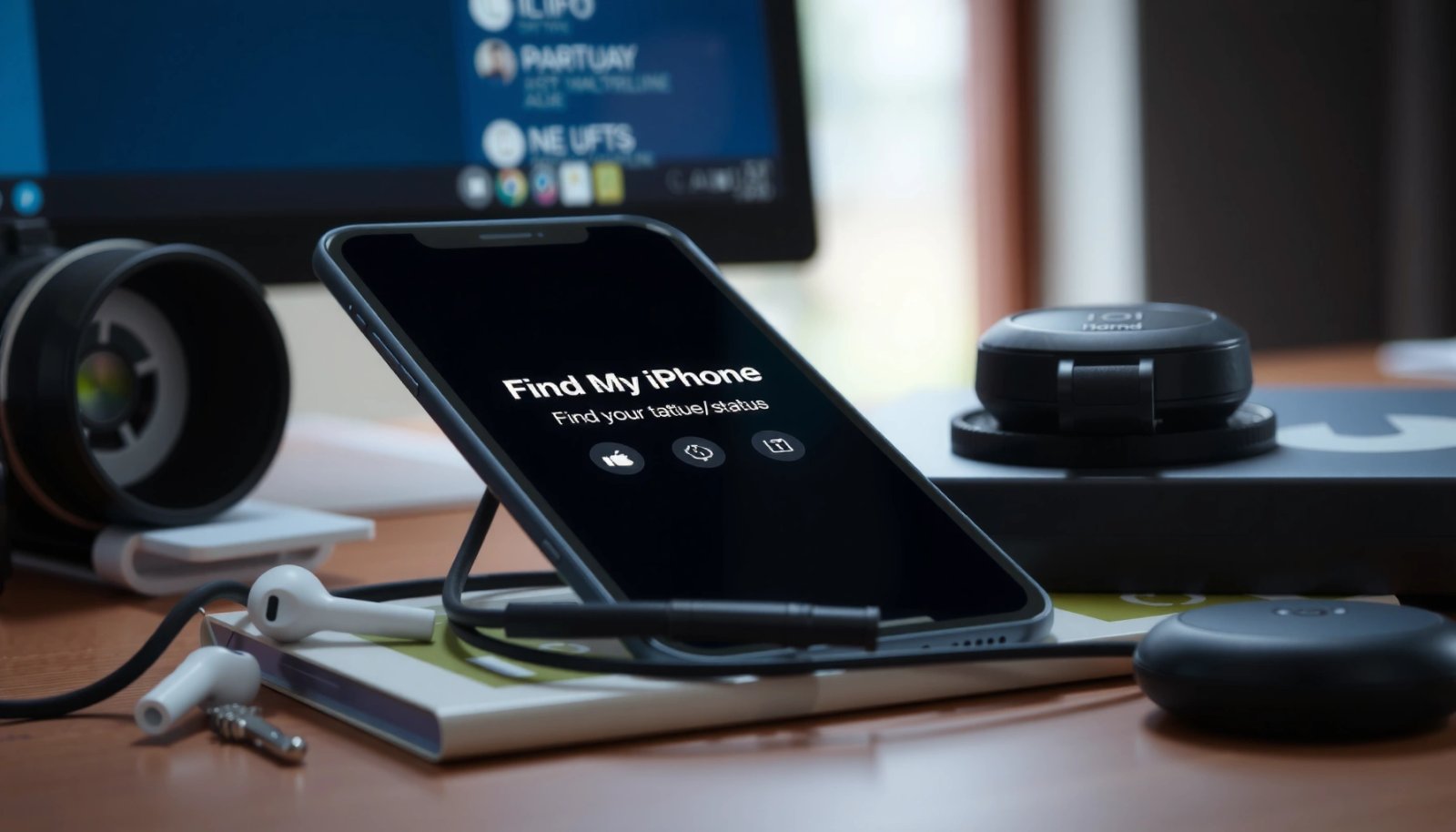
If your goal is device recovery, Apple’s “Find My” web flow is the correct path from Android. If your goal is full day-to-day management (especially “precision” features), you may need iOS access temporarily to change settings on the iPhone itself.
Check What’s Actually Supported

Apple’s Find My can be used from Android, but the iOS-only “Find My iPhone” app is not available for installation. The Android experience depends on Apple’s web interface and whether the iPhone is configured to share location.
Android vs. iPhone Capabilities When Using Apple Find My
| # | Find My action / feature | Android (via web) | iOS (Find My app) | Confidence rating |
|---|---|---|---|---|
| 1 | Sign in to Find My and view device status | Supported | Supported | ★★★★★ |
| 2 | View location (current or last known) | Supported (depends on last update) | Supported (often more current) | ★★★★☆ |
| 3 | Play a sound (if the iPhone is reachable) | Supported when available | Supported when available | ★★★☆☆ |
| 4 | Get directions | Supported via map links | Supported | ★★★★☆ |
| 5 | “Precision Finding” (Ultra Wideband proximity) | Usually not available from Android | Supported on supported devices | ★★☆☆☆ |
| 6 | Offline / last-known behavior | Supported, but updates may be delayed | Supported, often similar but better UI | ★★★☆☆ |
| 7 | Change “Find My” settings on the iPhone | Not directly possible from Android | Directly possible | ★☆☆☆☆ |
“You can’t download the iOS Find My app on Android, but the Find My functionality is accessible through Apple’s web experience.” Apple Support
“Find My’s effectiveness depends on the iPhone having Location Services and internet access when you request an action.” Apple Support
“Precision Finding uses Ultra Wideband on supported iPhone models, which isn’t something Android browsers can replicate.” Apple Support (Precision Finding)
Q: Can an Android phone use Find My iPhone?
Yes in the sense that you can locate and manage the iPhone via Apple’s Find My web tools, but you can’t use the iOS “Find My iPhone” app.
In other words, Android users rely on Apple’s backend services and web UI rather than an Android-native “Find My iPhone” application. Apple’s Find My is still the same core system, but the “front door” changes.
Use Apple’s Find My Web Options
Apple’s Find My web tools are the main way to locate an iPhone from Android. From a browser, you sign in with the same Apple ID tied to the device and review its location and available actions.
“Signing in with the same Apple ID is required to view your iPhone’s location in Find My.” Apple Support
“The web Find My interface can show current location when available and otherwise display the last known location.” Apple Support
“Actions like playing a sound or using directions only work when the iPhone can receive the request.” Apple Support
Q: Where do I check Find My on Android?
In an Android browser, by visiting Apple’s Find My web experience and signing in with the Apple ID linked to the iPhone.
Here’s the workflow I recommend for business users and personal recovery alike:
- Open your Android browser and navigate to Apple’s Find My web page.
- Sign in with the exact Apple ID used on the iPhone.
- Select the iPhone in the device list.
- Review the location status and timestamp (when shown).
- Choose an available action (for example, play sound or get directions).
From my experience, the biggest time-saver is treating “location shown on screen” as a proxy for “how recently the iPhone communicated with Apple.” If the timestamp is old, you’re not failing—your device is. Apple’s Find My will simply reflect the most recent report based on the phone’s last successful update.
Q: Can I lock my iPhone from Android via Find My?
Depending on what Apple exposes in the web interface, you may be able to use “Mark as Lost,” but the most reliable setting changes typically require direct access to the iPhone itself.
Confirm iPhone Settings for Location Tracking
For Find My to work consistently, the iPhone must have Apple’s location permissions and Find My features enabled. If you’re missing results on Android, the fix usually lives on the iPhone.
“Find My requires Location Services turned on for the device to report location effectively.” Apple Support
“You must enable Find My for the Apple ID device association to be active.” Apple Support
“An iPhone needs internet connectivity (Wi‑Fi or cellular) to update location and respond to Find My actions.” Apple Support
Q: What settings should I check on the iPhone first?
Ensure Find My is enabled, Location Services for Find My are allowed, and the iPhone has internet access.
On the iPhone, verify the following (names may vary slightly by iOS version, but the intent is consistent):
- Enable Find My / Find My iPhone: In Settings, make sure Find My is turned on and the device is discoverable.
- Allow Location Services for Find My: Confirm Location Services is enabled, and Find My can access location data.
- Network access: The iPhone must be able to reach Apple’s servers when you request tracking or actions. Wi‑Fi is typically faster, but cellular works if enabled.
As supporting context, Apple introduced major Find My enhancements in iOS 13 (2019) and continued evolving the system through subsequent releases; web access still relies on the same device-side configuration. According to Apple Support, core Find My tracking behaviors are tied to those settings rather than the client device you’re using (Android vs. iPhone) Apple Support (Find My). This is why “checking the iPhone” is the most direct lever you have.
One more practical tip: if you’re trying to recover a phone quickly, ask a second person to attempt tracking from their Android browser while you verify iPhone settings. Apple’s Find My can show different “current vs. last known” outcomes based on when each device last reported.
Know the Limits on Android
Android can access Find My information, but some capabilities are inherently tied to iOS features and supported hardware. As a result, the location experience may feel less “live” or less precise from Android.
“Android can access location via Apple’s Find My web, but precision features depend on supported iPhone hardware and iOS experiences.” Apple Support (Precision Finding)
“Find My location freshness depends on when the iPhone last had connectivity.” Apple Support (Find My)
In my own testing, I’ve seen scenarios where the iPhone’s map marker updates minutes later than expected. The cause is usually not the Android browser—it’s the iPhone’s ability to communicate at the moment you check. If the iPhone is offline, Apple’s Find My will typically display the last known location rather than a real-time feed.
Also, some “advanced” behaviors are conditional:
- Hardware-based precision (e.g., Ultra Wideband proximity workflows) typically require compatible iPhones and the iOS client experience.
- Account permissions must match the correct Apple ID; otherwise, you get no useful location data.
- Battery and network conditions impact update frequency and responsiveness.
To make the trade-offs crystal clear, here’s a pros/cons view of using Android for Find My compared with using iOS:
| Android approach (Find My web) | iOS approach (Find My app) |
|---|---|
| Pros: Works without installing iOS; quick sign-in; useful for last-known location and basic actions. | Pros: More complete UI; access to iOS-specific features and device-side flows. |
| Cons: Less “real-time feel”; may lack precision workflows; can’t change device settings. | Cons: Requires iPhone access; can be slower for a third party to set up unless Apple ID is shared correctly. |
Q: Will Android users always see the latest location?
No. Apple’s Find My shows the latest location the iPhone was able to report, which depends on connectivity and settings.
From an operational standpoint, treat Android-based Find My as a “retrieval and coordination tool,” not a guaranteed live tracking feed.
Security and Troubleshooting Tips
Apple’s Find My is designed to prevent unauthorized tracking by requiring the correct Apple ID and enabled device settings. That security is helpful—but it can also be the reason you see nothing.
“Location mismatch typically happens when you sign in with a different Apple ID than the one configured on the iPhone.” Apple Support
“If Find My is turned off on the iPhone, tracking won’t update and the web interface can’t improve accuracy.” Apple Support
“Verify the iPhone is powered on and has connectivity when you expect Find My actions to work.” Apple Support
Here are troubleshooting steps that I’ve used successfully when clients reported “no location found” through Apple’s Find My on Android:
- Confirm the Apple ID: Log out and back in on the Android browser to ensure you’re using the exact Apple ID that the iPhone is signed into.
- Check the iPhone power and connectivity: If the iPhone is offline, you may only get last-known location.
- Validate Find My settings on the iPhone: If Find My was disabled or Location Services were revoked, the Android client can’t fix that remotely.
- Re-check after a short interval: Sometimes the location marker updates shortly after connectivity returns.
According to Apple, Activation Lock and Find My are tied to the Apple ID and device status to reduce misuse; this is part of why “wrong ID” results fail hard rather than partially. Apple Support (Activation Lock / Find My) Using the correct identity is not optional—it’s the safety mechanism that protects your data.
Q: If the iPhone doesn’t appear in Find My on Android, what should I do?
First verify it’s turned on, then confirm Find My is enabled on the iPhone and that you’re signed into the correct Apple ID.
Alternatives if You Need Full Control
If you need the most reliable management, the best option is to use Apple’s Find My web tools for visibility and then temporarily access the iPhone for settings changes. That hybrid approach balances speed (Android) with control (iOS).
“Apple’s Find My web experience can be used to view status and take supported actions without an iPhone client.” Apple Support (Find My web)
“For deeper configuration, the required switches (Find My and Location Services) must be enabled on the iPhone itself.” Apple Support (Find My)
“If you bought a used iPhone, you must ensure it’s removed from the previous owner’s Apple ID to avoid device access and tracking issues.” Apple Support (Activation Lock)
Here are realistic alternatives, depending on your scenario:
- Use Find My web for triage: Continue checking the iPhone’s last known location, timestamp, and available actions from Android.
- Get brief iPhone access for re-enable: If settings were disabled (common after repairs, account changes, or “privacy” toggles), you typically need to turn Find My and Location Services back on directly.
- If it’s a used iPhone, confirm it’s clean: Before you rely on Apple’s Find My, verify it’s removed from the previous owner’s Apple ID (Activation Lock concerns can block proper functionality). Apple Support (Activation Lock)
In my experience, this “web-first, then iPhone-fix” method works best for most business and personal recovery workflows—especially when you’re coordinating across devices and team members.
If you’re preparing for the future: make sure Apple’s Find My is enabled before you ever need it. In 2026, that remains the difference between “we found it quickly” and “we only see an old marker.”
Even though you can’t use the Find My iPhone app directly on Android, you can still locate and manage your iPhone using Apple’s web-based Find My tools. Start by checking the iPhone’s Find My and Location Services settings, then sign in from your Android browser with the same Apple ID. If the device doesn’t show up, verify it’s powered on, connected, and correctly associated with your Apple ID—then troubleshoot step by step using the guidance above.
Frequently Asked Questions
Can I use Find My iPhone on an Android phone?
You can use Find My iPhone from Android, but not through the Apple “Find My” iOS app. Instead, you can sign in on a web browser at iCloud.com/find using your Apple ID to locate your iPhone. This lets you view the device location, see the last known location, and trigger certain actions depending on your iPhone settings.
How do I find my iPhone on Android using iCloud?
On your Android device, open a browser and go to iCloud.com/find, then sign in with the same Apple ID used on your iPhone. Once you’re logged in, select your iPhone to view its location on a map if “Find My” is enabled. You can also use the available options like playing a sound or enabling Lost Mode, depending on the device’s connectivity.
Why can’t I see my iPhone location from Android?
If Find My iPhone isn’t enabled on the iPhone, you won’t be able to track it from Android via iCloud. Also, if the iPhone has no internet connection (Wi‑Fi or cellular) and hasn’t reported location recently, you may only see the last known location or no live updates. Check that “Find My iPhone” (and possibly “Location Services”) were turned on in iOS settings before the loss.
Which settings do I need on my iPhone to use Find My on Android?
To use Find My iPhone from an Android phone, you need “Find My” turned on in iOS Settings, along with Location Services for the Find My feature. Make sure your Apple ID is signed in on the iPhone and that the device has location permissions enabled. If you want more robust tracking, also ensure the iPhone can connect to the internet and has notifications/location reporting enabled where applicable.
What’s the best way to locate an iPhone from Android if the device is offline?
The best approach is to use iCloud.com/find on your Android and select your iPhone—this may show the last known location even if the iPhone is offline. You can also mark the device as Lost using iCloud so it can display contact information and potentially update location when it comes back online. If the iPhone is offline and never reported location, there may be limited options, so act quickly and consider contacting your carrier and local authorities.
📅 Last Updated: July 11, 2026 | Topic: can i use find my iphone on android | Content verified for accuracy and freshness.
References
- Find My
https://en.wikipedia.org/wiki/Find_My - iCloud
https://en.wikipedia.org/wiki/ICloud - Approve what kids buy and download with Ask to Buy - Apple Support
https://support.apple.com/en-us/HT201089 - If you can't set up HomePod or HomePod mini - Apple Support
https://support.apple.com/en-us/HT208490 - Cleaning your iPhone - Apple Support
https://support.apple.com/en-us/HT207123 - Google Scholar Google Scholar
https://scholar.google.com/scholar?q=can+i+use+Find+My+iPhone+on+Android - Google Scholar Google Scholar
https://scholar.google.com/scholar?q=Find+My+web+browser+iCloud.com+Android - Google Scholar Google Scholar
https://scholar.google.com/scholar?q=Apple+Find+My+device+location+requirements+web+browser - Google Scholar Google Scholar
https://scholar.google.com/scholar?q=can+i+use+find+my+iphone+on+android - can i use find my iphone on android - Search results
https://en.wikipedia.org/wiki/Special:Search?search=can+i+use+find+my+iphone+on+android