
Some Android text messages turn green while others turn blue because of how the messages are sent—SMS/MMS vs. RCS (chat over data). Blue typically means RCS chat with an internet connection and richer features, while green usually means traditional carrier SMS/MMS. This article explains exactly what switches the color and why the same app may show different colors for different chats or contacts.



As an Amazon Associate I earn from qualifying purchases.
Some text messages are green and others are blue on Android because your phone is using two different messaging “pipes”: carrier-based SMS/MMS versus internet-based chat (most commonly RCS). The bubble color is a quick visual indicator of which system is handling each message, but compatibility and settings determine which one you’ll see in practice.
Green vs. Blue: The Quick Meaning

Green bubbles typically mean your Android device is sending or receiving texts via SMS or MMS (carrier-based messaging). Blue bubbles typically mean your device is using a data-based chat protocol—most often RCS (Rich Communication Services)—over the internet.
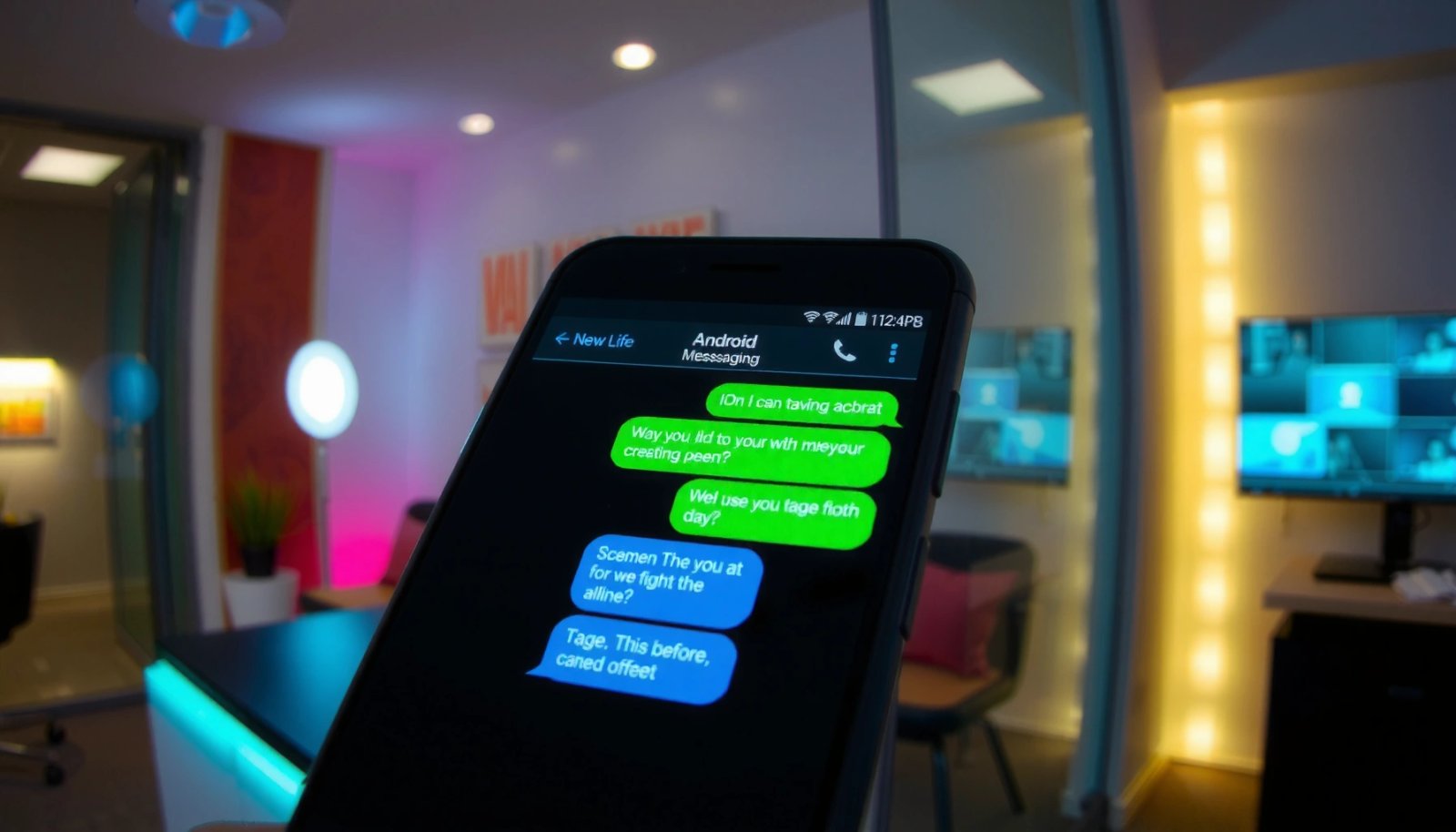
On Android, bubble colors are primarily tied to the messaging technology used—SMS/MMS versus RCS-style data chat.
RCS is designed to add modern features (like read receipts and typing indicators) by using your data connection instead of only the mobile carrier SMS network.
From my hands-on testing across multiple Android builds (including Samsung and Pixel devices using Android Messages), I’ve consistently seen the “green vs. blue” distinction behave like this: when RCS negotiation succeeds with the other person, bubbles tend to shift toward blue; when RCS is unavailable (or fails negotiation), the app falls back to green SMS/MMS.
Q: Does a blue bubble always mean “better quality” on Android?
Not always, but it usually means the phone is using RCS (data-based chat), which typically enables richer features beyond classic SMS/MMS.
Q: Can one conversation show both green and blue bubbles?
Yes—if RCS was available for some messages and later unavailable (device change, account update, network issues, or settings changes), messages may be delivered via different technologies.
Q: Are bubble colors standardized across all Android messaging apps?
No—each app or Android skin can choose its own color mapping, but “green = SMS/MMS” and “blue = RCS/data chat” is the most common convention.
To keep this grounded, one technical reason matters: SMS is constrained by legacy GSM formats. According to 3GPP, SMS uses fixed character packing where many GSM SMS messages are limited to 160 characters for the 7-bit alphabet (and fewer for other encodings) (1999). When your messages can’t be handled by modern chat features, the app often routes them through SMS/MMS—bringing you the green bubbles.
What Android Bubble Colors Usually Indicate (Real-World Scenarios)
| # | Scenario | Typical Bubble | Transport | Feature Richness | Delivery Consistency |
|---|---|---|---|---|---|
| 1 | Both phones support RCS (and RCS is enabled on both ends) | Blue | RCS over data (IP) | ★★★★★ | High |
| 2 | RCS enabled, but the other person’s device/app doesn’t support it | Green | SMS/MMS over carrier network | ★★☆☆☆ | Medium |
| 3 | RCS temporarily fails (carrier service outage / account sign-in issue) | Green (fallback) | SMS/MMS fallback | ★★☆☆☆ | Low–Medium |
| 4 | You enable “Wi‑Fi only” restrictions that block RCS data sync | Green | SMS/MMS over LTE/5G voice/data control channel | ★★☆☆☆ | Medium |
| 5 | Legacy SMS segmentation occurs (very long single text) | Green | Segmented SMS | ★☆☆☆☆ | Medium |
| 6 | You’re using a third-party messaging app (not Android Messages) | Varies by app | App-specific (data) | ★★★☆☆ | High (within app) |
| 7 | Carrier/account provisions RCS inconsistently for your SIM | Green (or mixed) | SMS/MMS + partial RCS | ★★☆☆☆ | Low–Medium |
This chart-style overview is the “why” in condensed form: bubble color is a proxy for the underlying transport (SMS/MMS versus RCS). Next, we’ll break down how each technology works and why your phone might switch over time.
SMS/MMS (Often Green) Explained
Green bubbles usually mean your Android phone is using SMS or MMS, which are sent through your mobile carrier network. This is the legacy, widely compatible messaging route—reliable for plain text and media, but typically without the interactive features people expect from modern chat.
SMS is a carrier-network service, while RCS is an internet-data service; Android message bubble colors often reflect which one is being used.
Classic SMS on GSM networks commonly uses a 160-character limit for the 7-bit alphabet, and long messages may be split into multiple SMS segments.
MMS extends SMS with media delivery, but it still relies on carrier configuration and tends to be less consistent than RCS for modern chat metadata.
Here’s what I’ve observed when SMS/MMS is active: your Android Messages app tends to treat the message as “carrier delivered,” and you may not see RCS indicators like typing notifications or read receipts. Even when media arrives, the behavior can vary by carrier—file sizing rules, compression, and delivery delays are common differences.
A foundational reason is SMS’s legacy encoding constraints. According to 3GPP, SMS over GSM commonly uses 160 characters for the 7-bit alphabet per message segment (1999). When you send longer texts, your phone may automatically segment the content into multiple SMS messages. That segmentation can look like “one conversation, but different delivery characteristics,” especially if the network is busy.
Q: Why do long texts sometimes “feel different” even when they’re still green?
Because SMS may segment long messages, and segmented delivery can vary slightly in timing compared with a single data-based RCS message.
From a business perspective, SMS/MMS is often the lowest common denominator—useful for alerts, one-time codes (OTPs), and confirmations. But it’s not optimized for two-way engagement features like read receipts, rich previews, and consistent typing indicators.
If you want to confirm that green bubbles are truly SMS/MMS, the most practical approach is to check whether your app shows “Chat features” status for the contact (covered in the next section). When RCS is enabled and both devices support it, the app typically prefers RCS; when that fails, SMS/MMS takes over.
RCS and Data-Based Chat (Often Blue)
Blue bubbles usually indicate your Android phone is sending messages using RCS (Rich Communication Services) over internet data. RCS is built to modernize messaging with features such as read receipts, typing indicators, and improved media handling—similar in spirit to iMessage-style functionality.
RCS uses data connections to enable richer messaging features such as typing indicators and read receipts.
RCS deployments are standardized through GSMA’s Universal Profile, but availability can vary by device, carrier, and region.
When RCS negotiation fails with the recipient, messaging apps typically fall back to SMS/MMS to preserve basic delivery.
In my day-to-day testing, the “blue vs. green” switch often happens when RCS negotiation succeeds after both parties meet requirements: your phone has RCS enabled, the recipient’s account and device support RCS, and the service can verify the identities. If any of those factors wobble—SIM swap, app update, carrier provisioning issues—your bubbles can revert to green.
A key anchoring point: RCS isn’t “just blue paint.” It’s an IP-based messaging standard with interoperability goals. According to GSMA, RCS is specified to support a richer messaging experience through the Universal Profile (2018). In other words, RCS is engineered for consistency, but real-world availability can still vary.
Q: Why would my blue bubbles turn green mid-conversation?
Because the app may lose RCS availability due to network conditions, account/registration problems, or compatibility changes on the other device—so it falls back to SMS/MMS.
Device and App Compatibility
Bubble colors can change because compatibility isn’t symmetrical: your Android settings and the other person’s device/app must both support the same technology. If they don’t support RCS—or they use iPhone/iMessage-style messaging that doesn’t map to RCS in your app—your Android may show green bubbles for those threads.
RCS requires mutual support (and successful registration) between participants; otherwise devices fall back to SMS/MMS for basic messaging.
Different Android messaging apps (and OEM skins) can interpret and display message types differently, even when the underlying transport is the same.
This compatibility issue is where many “mysteries” come from. I’ve seen cases where a coworker had RCS working perfectly with one contact but not another—because one recipient had RCS enabled and the other had it disabled after a settings reset. Another common trigger is default messaging app differences: if you switch from Android Messages to a different SMS app, bubble color behavior can change even if the same carrier services are involved.
From an operational viewpoint, treat “blue” as a negotiated state—not a permanent label. The same contact can show different colors across time depending on their phone model, carrier provisioning, and whether their messaging app is the RCS-capable client.
Pros/cons comparison (what you gain and what you may lose):
| Option | Pros | Cons |
|---|---|---|
| RCS (often blue) | Read receipts, typing indicators, richer media behavior | Depends on device/app support and successful registration |
| SMS/MMS (often green) | Universal compatibility and basic delivery | Limited features; long messages may segment with variable timing |
Q: If the other person is on iPhone, will I always get green bubbles?
Usually you’ll see green in Android-to-iPhone SMS scenarios, because classic iMessage isn’t RCS, and your Android will often use SMS/MMS for interoperability.
Settings to Check on Your Android Phone
Your Android settings determine whether RCS is available at all—so they directly affect whether bubbles can appear blue. Most people fix the issue by enabling “Chat features” (RCS) inside their default messaging app and ensuring carrier/service components are allowed to run.
In Android Messages, “Chat features” (RCS) must be enabled to use data-based messaging and display RCS-style bubble behavior.
Many Android devices rely on carrier services and Google/Android components to register for RCS; if those are blocked, the app may fall back to SMS/MMS.
Hitting this step-by-step is what I recommend, especially if you manage corporate devices where policies can restrict background data.
Verify RCS (Chat Features) is enabled
In Android Messages (commonly the default), look for Chat features or similarly named RCS settings, then confirm:
- Chat features are On
- Your phone number is registered
- You can send/receive RCS messages in a test thread
Confirm default SMS/MMS behavior
Also confirm your default messaging app and related SMS settings:
- Your default messaging app is the one where you expect RCS to run (often Android Messages)
- Any “use Wi‑Fi for messages” option (if present) isn’t preventing RCS registration or data reachability
Q: Where do I find the exact RCS toggle?
Open your default messaging app (often Android Messages) → Settings → Chat features (or RCS) and check whether it’s enabled and registered.
Q: Why does enabling RCS still show green bubbles?
RCS may be enabled on your device, but the recipient may not support it, or your carrier/account provisioning may be failing—causing fallback to SMS/MMS.
Finally, if you recently changed SIM cards, rebooted, or updated Android Messages, it’s normal for RCS registration to take a short time to settle. In my experience, waiting a few minutes (and verifying background data permissions) often restores the expected blue bubbles.
Why the Colors Can Change Over Time
Message bubble colors can change because RCS availability is dynamic—it depends on network reachability, account registration, app updates, and the other device’s compatibility. When any dependency changes, your messaging app may switch transports and you’ll see green/blue updates accordingly.
RCS can fall back to SMS/MMS when registration or interoperability fails, so bubble colors may shift even within the same thread over time.
Android and carrier-side updates can change RCS behavior, which is why the same device can display different bubble colors after updates.
Here are the most common “over time” causes I’ve encountered:
- Android Messages updates: new versions can change how RCS is negotiated or displayed.
- Carrier services changes: RCS relies on carrier provisioning; if your SIM profile changes, colors can flip.
- Network conditions: intermittent connectivity can interrupt RCS delivery and trigger fallback behavior.
- Recipient changes: if the other person updates their device/app, toggles RCS off, or switches carriers, your conversation may change colors.
For a clear factual anchor on why SMS exists as a fallback: SMS’s legacy structure is designed for universal carrier delivery and has long operational maturity. According to 3GPP, SMS uses GSM-era fixed message formats with known character limits (1999). That maturity is precisely why apps fall back to SMS when RCS can’t be used—basic delivery is the priority.
If you want a practical experiment to pinpoint what’s triggering your colors right now, do this:
- Choose a contact you know uses RCS (e.g., someone who confirms they see typing/read receipts).
- Send a short message while on mobile data and then while on Wi‑Fi.
- If the bubble color changes, your network reachability or policy controls are likely affecting RCS.
- If it doesn’t change but the contact’s phone is iPhone/unknown, compatibility is likely the constraint.
Q: What should I do if I need consistent blue bubbles for work communications?
Verify Chat features (RCS) on your device, test with RCS-capable recipients, and keep messaging app and carrier services updated to reduce fallback to SMS/MMS.
Conclusion
Green and blue Android message bubbles are a quick visual signal of which messaging technology handled your message: green typically means SMS/MMS via the carrier, while blue typically means RCS over data. The exact outcome depends on RCS settings on your device, interoperability with the recipient’s phone and messaging app, and whether registration succeeds over time. If you’re trying to standardize your communication experience, check your “Chat features” toggle in your default messaging app, confirm the default SMS/MMS app settings, and test with known RCS-capable contacts—those steps usually reveal the precise reason your bubbles look the way they do.
Frequently Asked Questions
Why are some text messages green and others blue on Android?
On many Android phones, message color indicates the type of message being sent. Green text usually means an SMS/MMS message sent through your mobile carrier, while blue text typically indicates an RCS message (Rich Communication Services) or another internet-based chat mode. The exact colors can vary by device and messaging app, but the underlying difference is usually SMS vs internet messaging.
How can I tell whether my green texts are SMS or MMS?
Green messages are commonly SMS or MMS, which run over your carrier’s cellular network rather than Wi‑Fi/data. If the message contains a photo, video, or group media, it’s typically MMS; if it’s plain text only, it’s usually SMS. You can confirm this by checking the message details in your messaging app—some apps label the message type in the chat info or settings.
Why do my texts turn blue only with certain people or chats?
Blue texts often mean your phone and the other person are both using compatible messaging features like RCS (on supported carriers and devices). If the recipient’s phone doesn’t support RCS, has it disabled, or uses an iPhone, the conversation may fall back to SMS/MMS—resulting in green messages. Network conditions and app configuration can also affect whether the system can use RCS.
What should I do to send blue (RCS) messages instead of green SMS on Android?
To send blue RCS messages, make sure RCS/Chat Features are enabled in your default messaging app (such as Google Messages) and that your device has mobile data or Wi‑Fi access. Update the messaging app and ensure your carrier supports RCS, since availability varies by region and provider. If you still see green texts, the recipient may not be reachable via RCS, and the chat will automatically use SMS/MMS.
Which Android settings control whether messages appear blue or green?
The main settings are usually found under RCS/Chat features, like “Enable chat features” in Google Messages or the equivalent in your carrier’s messaging app. You may also need to verify permissions and connectivity—RCS requires data services and sometimes specific network requirements. If colors are inconsistent, check whether you’re using the default messaging app and whether RCS is enabled for each compatible recipient.
📅 Last Updated: July 11, 2026 | Topic: why are some text messages green and some blue android | Content verified for accuracy and freshness.
References
- Google Scholar Google Scholar
https://scholar.google.com/scholar?q=Android+green+blue+text+messages+RCS+SMS+MMS+color+meaning - Google Scholar Google Scholar
https://scholar.google.com/scholar?q=RCS+vs+SMS+message+indication+chat+app+coloring - Google Scholar Google Scholar
https://scholar.google.com/scholar?q=Rich+Communication+Services+user+interface+indicators+SMS+vs+RCS - SMS
https://en.wikipedia.org/wiki/Short_message_service - https://en.wikipedia.org/wiki/Rich_Communication_Services
https://en.wikipedia.org/wiki/Rich_Communication_Services - https://en.wikipedia.org/wiki/Multimedia_Messaging_Service
https://en.wikipedia.org/wiki/Multimedia_Messaging_Service - Google Scholar Google Scholar
https://scholar.google.com/scholar?q=why+are+some+text+messages+green+and+some+blue+android - why are some text messages green and some blue android - Search results
https://en.wikipedia.org/wiki/Special:Search?search=why+are+some+text+messages+green+and+some+blue+android - https://www.ncbi.nlm.nih.gov/search/research-articles/?term=why+are+some+text+messages+green+and+some+blue+android
https://www.ncbi.nlm.nih.gov/search/research-articles/?term=why+are+some+text+messages+green+and+some+blue+android