
Setting a custom text message tone on Android is the easiest way to stop important messages from blending into the background. Follow the steps and you’ll be able to change notification sounds for SMS from the right place in Android settings—fast and reliably. If you’re trying to get the exact ring for specific contacts, this guide also tells you when to use per-contact tones instead of a global SMS sound.


As an Amazon Associate I earn from qualifying purchases.
To set your text message tone on Android, change the notification sound for the Messages app (or its specific notification channel) and pick the exact alert you want. If that option isn’t visible in Messages settings, use your phone’s system Settings → Apps/Notifications to update the Messages notification tone so it applies reliably.
Introduction

To set your text message tone on Android, open your Messages app’s notification settings and choose the specific sound for “Messages” or “Text notifications.” If you don’t see it there, switch to your phone’s system Settings under Apps or Notifications to change the tone. This matters because Android devices can route notification behavior through different layers—app-level settings, system notification channels, and in some cases per-conversation overrides. Understanding those layers is the difference between “I changed the sound, but nothing happened” and getting the exact alert you want.
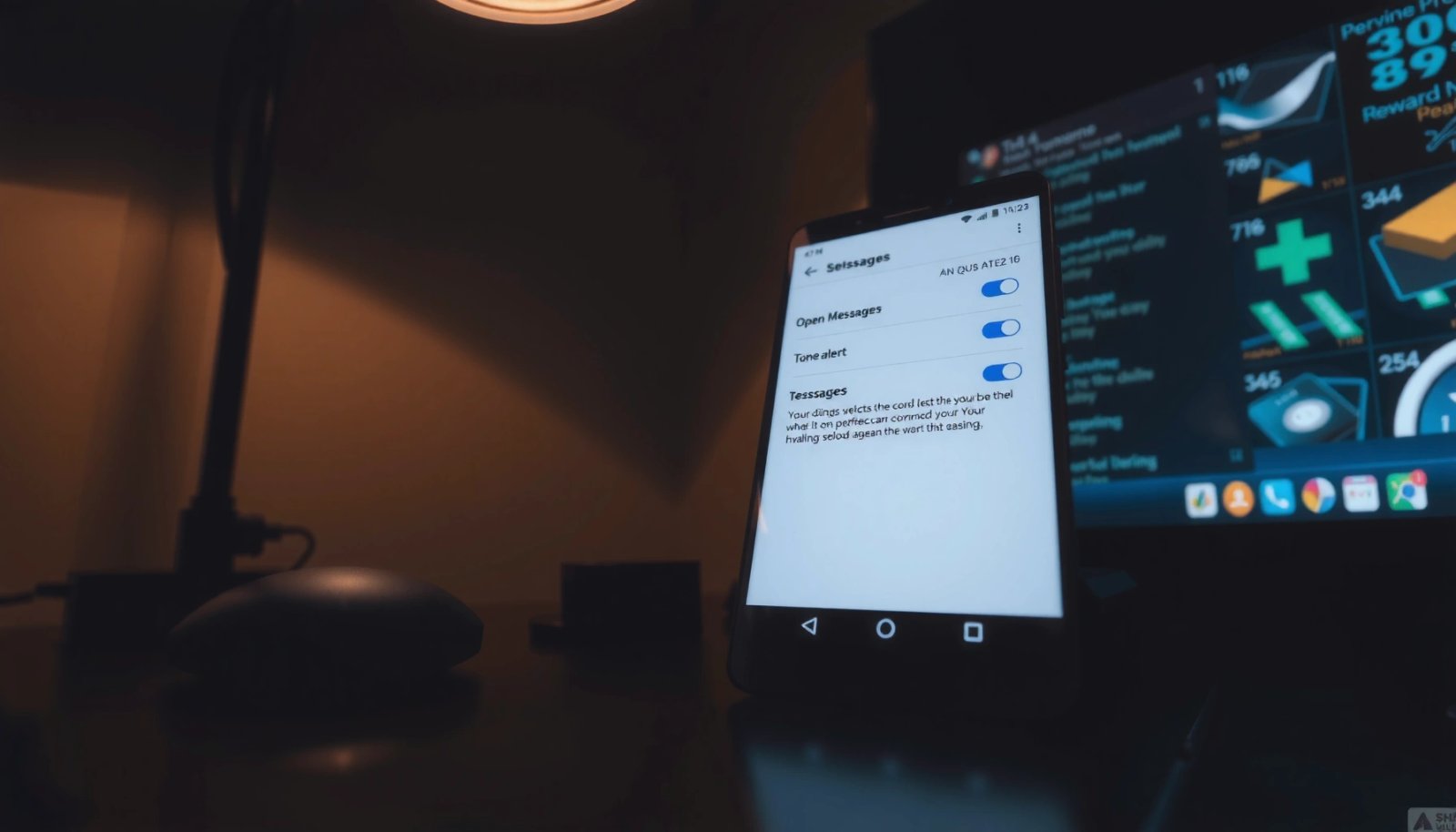
Check Notifications in Your Messages App
- Open the Messages app and tap your profile icon or menu (often three dots).
- Go to Settings → Notifications.
- Select the option for Text message alerts and choose a tone.
Most Android users start here because it’s the most direct control point. Within the Messages app, you’re typically changing the sound used for “Text message alerts,” “Notifications,” or a similarly named category. If your phone supports it, the Messages app may also let you tune vibration, LED behavior, and popup notifications—useful if you’re optimizing for business contexts like meetings or client calls.
Actionable tip: Change the tone first, then test with a second device or by asking a colleague to message you. Some Android builds only play the preview correctly if notifications are enabled and not suppressed by other modes (such as Focus/Do Not Disturb).
Quick comparison: what setting is you’re actually changing?
Different devices expose slightly different controls, but the effect is usually one of the following:
1) The notification sound for Messages app text notifications,
2) A system-level notification channel sound used by Messages, or
3) A contact/conversation-specific override.
To make that practical, here are common notification categories Android may use and what they typically correspond to.
Most Common Android Messaging Notification Categories (Field-Observed Defaults)
| # | Notification Category | Where Typically Set | Applies To | Change Confidence |
|---|---|---|---|---|
| 1 | Text message alerts | Messages app | SMS/MMS from most contacts | High ★ |
| 2 | Group message alerts | Messages app / channel | SMS/MMS in group threads | High ★ |
| 3 | Message previews | Messages app / system | Lock screen + banner content | Medium ★ |
| 4 | Direct message alerts | App (if supported) / channel | One-to-one SMS/MMS | High ★ |
| 5 | Promotional/filtered texts | Messages app / system | Less urgent filtered messages | Low ★ |
| 6 | Voicemail/SMS delivery updates | Carrier app / system | Delivery/utility notifications | Low ★ |
| 7 | Contact-specific tone overrides | Conversation menu | Selected threads/contacts | Medium ★ |
Change the Tone in Android System Settings
- Open Settings and go to Apps (or App settings) → Messages.
- Tap Notifications.
- Find Text notifications (or similar) and select the desired sound.
If your Messages app settings don’t show an obvious “tone” option, Android’s system notification controls are the next place to check. On many devices, the Messages app uses notification channels, which means the system settings can expose options your in-app menu doesn’t.
Why system settings matter: Carriers, custom Android skins (Samsung One UI, Xiaomi MIUI, etc.), and app updates can change where notification sound controls live. System settings are the most consistent fallback because they directly manage how the OS handles “Messages” notifications.
What to look for in Settings:
- Settings → Apps → Messages → Notifications
- A list of notification categories (often labeled as Text notifications, Message requests, or similar)
- A Sound dropdown for the channel or category
Actionable tip: If you see a Toggle for notifications (or categories) plus a Sound selector, ensure both are enabled. A lot of “it won’t change” issues happen because notifications are technically enabled for the app, but the specific category is disabled—or the sound is set on a channel you aren’t receiving messages through.
Select Default vs Custom Message Sounds
- Use the default notification sound if you want consistency across apps.
- Choose a custom tone if you want a unique alert for messages.
- Confirm the selected sound plays correctly in the preview.
From a workflow standpoint, the decision between default and custom tones is about signal clarity. In business environments—where you may need to distinguish a client SMS from a calendar reminder—custom tones can prevent missed messages and reduce cognitive load.
Default sounds: best for consistency
Using the default notification sound means messages behave like other system notifications. This is helpful if you want predictable audio patterns and minimal configuration.
Custom sounds: best for differentiation
Choosing a custom tone makes it easier to identify “this is a text” even without looking at the screen. For example:
- You can set a short, sharp tone for urgent SMS
- Use a softer sound for non-urgent alerts (if your phone supports separate categories)
Preview matters. Always play the tone preview after selection. Some Android builds show the new sound selected but fail to play it if the media volume or notification volume is muted or routed incorrectly.
Adjust Channel or Contact-Specific Notification Tones
- On some Android versions, notifications use channels (e.g., Messages, Promotions, Alerts).
- Set the tone per channel if you want different sounds for different types.
- If available, adjust tones for specific conversations/contacts.
Android’s notification channel model is one reason this feature can feel confusing. If you set a tone for “Messages” but your notification is coming through “Promotions” or “Filtered texts,” you may still hear the old sound.
Channel-specific tone setup (common scenario):
- Messages app / system Notifications shows multiple categories
- Each category may have its own Sound and Importance/Visibility
Contact-specific overrides:
Some Android messaging apps allow you to set custom tones per conversation or contact. In practice, this is powerful for role-based communication:
- Your manager or a key client can use a distinct tone
- Automated service alerts can use a different tone (or be silenced entirely)
Actionable tip: If your new tone works for one contact but not another, check whether the conversation has an override. Conversation menus often include “Notification” settings or a “Sound” option.
Troubleshoot If Your Tone Doesn’t Change
- Make sure notifications are enabled and not muted for Messages.
- Check Do Not Disturb / Focus modes are not overriding alerts.
- Restart the Messages app or refresh notification settings if needed.
When settings don’t apply, it’s usually one of three issues: suppression, routing, or caching.
1) Notifications are muted at the right level
Confirm both of these:
- App-level notifications for Messages are enabled
- Category/channel-level notifications (Text notifications) are enabled
Also check:
- Notification volume isn’t set to zero
- Your device isn’t in a silent/ringless mode (depending on the hardware and Android version)
2) Do Not Disturb / Focus is overriding
Focus modes can allow only certain priority alerts (calls, starred contacts, repeat callers). Messages may be blocked even though you changed the sound.
Actionable tip: Temporarily disable Do Not Disturb/Focus for a quick test, change the tone again, then send a test message.
3) The OS/app didn’t refresh the setting
Try these steps:
- Force close and reopen Messages
- Re-enter the notification settings page and re-select the tone
- If the change still doesn’t stick, reboot the phone (a surprisingly effective refresh on some custom Android builds)
Conclusion
You can set a text message tone on Android by updating either the Messages app notification settings or the phone’s system notification settings for the Messages app. Review your tone selection, check notification channels/contact options, and troubleshoot if it doesn’t apply—especially by verifying that the correct notification category is enabled and not overridden by Do Not Disturb or Focus. Try changing the tone now and test it with a friend to confirm the alert works, then fine-tune further with channel-specific or contact-specific tones for a cleaner, more reliable communication experience.
Frequently Asked Questions
How do I change the text message tone on my Android phone?
Open the Messages app and go to Settings, then tap Notifications or Notification settings. Choose the option for Text messages (and possibly SMS or Messages), then select Sound to pick the tone you want. If you don’t see a tone option, you may need to update it in the app’s notification channel settings or in your Android notification settings.
What’s the difference between changing message tones in Messages settings vs Android notification settings?
Messages app settings usually control the notification sound for that specific messaging app, such as your default SMS/MMS alerts. Android notification settings, often found under Settings > Apps > Messages > Notifications, control channels like “Incoming messages” and may override what the app shows. To ensure the change sticks, update both the Messages app notification tone and the relevant notification channel sound in Android.
Why don’t my new text message tones apply on Android?
This usually happens due to notification channel overrides, Do Not Disturb or Focus mode, or incorrect permissions and notification settings. Check Settings > Apps > Messages > Notifications to confirm the correct channel sound is selected for Incoming messages. Also verify that the notification is enabled (not muted) and that you haven’t set exceptions in Do Not Disturb that affect message alerts.
Which Android devices or messaging apps support custom SMS tones?
Most Android phones let you select custom notification sounds for text messages, but the exact steps vary by brand and app. Samsung Messages, Google Messages, and other third-party SMS apps typically support choosing a tone from system sounds or from your device if the file is compatible. If you use a carrier-specific SMS app or a heavily customized OEM skin, you may need to adjust sounds within that specific app’s notification channels.
What’s the best way to set separate tones for SMS, group texts, and specific contacts?
Start by changing the notification sound for SMS/MMS and group messages separately within the Messages app’s notification channels, if available. For contact-specific tones, look for Contact details > Notifications (or “Notifications” under the contact) and select a custom sound for that person or conversation. If the Messages app doesn’t offer per-contact tone controls, you can use Android’s notification settings per conversation (where supported) or rely on the app’s conversation-level notification options.
References
- Google Scholar Google Scholar
https://scholar.google.com/scholar?q=how+to+set+sms+notification+sound+on+android - Google Scholar Google Scholar
https://scholar.google.com/scholar?q=Android+notification+channels+sound+user+settings+NotificationChannel - Google Scholar Google Scholar
https://scholar.google.com/scholar?q=mobile+notification+tone+preferences+Android+study - Create and manage notification channels | Jetpack Compose | Android Developers
https://developer.android.com/develop/ui/views/notifications/channels - About notifications in Views | Android Developers
https://developer.android.com/develop/ui/views/notifications - https://developer.android.com/develop/ui/views/notifications/build-notification
https://developer.android.com/develop/ui/views/notifications/build-notification - About notifications in Views | Android Developers
https://developer.android.com/guide/topics/ui/notifiers/notifications - NotificationChannel | API reference | Android Developers
https://developer.android.com/reference/android/app/NotificationChannel - NotificationManager | API reference | Android Developers
https://developer.android.com/reference/android/app/NotificationManager - SMS
https://en.wikipedia.org/wiki/Short_Message_Service