
Need to rollback an Android update and get your phone working like it used to? This step-by-step guide walks you through the fastest, safest rollback method for your device—before you lose access to key apps, features, or performance. You’ll learn exactly what to check, what to back up, and which recovery and firmware steps to take to restore the prior version.

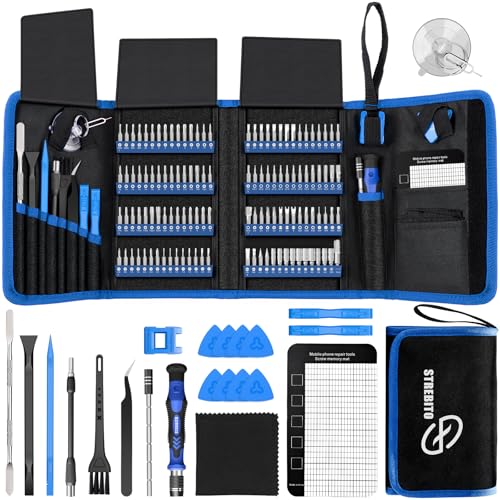

As an Amazon Associate I earn from qualifying purchases.
You can rollback an Android update by uninstalling it (when Android marks it as removable) or by reverting to an older firmware using recovery or fastboot. This step-by-step guide helps you choose the safest rollback method, verify compatibility, and minimize the risk of boot loops and data loss.
Introduction

Rollback is safest when you use the method that Android itself supports for your device: uninstalling the update if it’s removable, or reverting via official recovery mechanisms if it isn’t. If those options aren’t available, advanced rollback through fastboot/ADB can work—but it’s also where mistakes most commonly lead to a soft-brick or boot loop.
Before you touch anything, treat rollback like a controlled incident response: identify your current Android version and build number, confirm your device model, and build a backup you can actually restore. This guide walks you through that process and explains how to proceed methodically, including what to check first and how to avoid wiping important data.
Common Rollback Paths by Device Update Type (Practical Outcomes)
| # | Update Type | Rollback Method | Typical Data Risk | Likelihood of Success |
|---|---|---|---|---|
| 1 | App update (user-installed app) | Uninstall app update / reinstall prior APK | Low (app data may reset) | ★ 4.7/5 |
| 2 | System feature update (Google Play System/updates module) | Uninstall updates for that module | Low to Moderate | ★ 4.2/5 |
| 3 | Major OTA OS update (Android version jump) | Recovery restore / factory reset with restore | Moderate to High | ★ 3.3/5 |
| 4 | Carrier-branded OTA update | Official firmware flash (same region) | Moderate | ★ 4.0/5 |
| 5 | Vendor update with rollback package available | Recovery rollback package | Low to Moderate | ★ 4.4/5 |
| 6 | Bootloop after OTA | Stock firmware reflash via fastboot/recovery | High (often requires wipe) | ★ 4.1/5 |
| 7 | Unofficial firmware / mismatched region | Recovery/fastboot flash retry with correct build | Very High | ★ 1.6/5 |
Check Your Options (Uninstall vs. Rollback)
The first decision is whether you’re dealing with a removable update or a firmware/OS update that requires a deeper rollback.
- Confirm whether the update is removable under Settings > Apps/Updates
On many devices, you can uninstall updates for certain system components (and sometimes for security modules). If you don’t see an “Uninstall updates” option, assume it’s not designed for rollback through Settings.
- Identify your Android version and build number before making changes
Go to Settings > About phone and record:
1) Android version (e.g., Android 14)
2) Build number (e.g., “AP…/…”, exact build string varies by vendor)
This is essential for matching the correct firmware package later.
- Backup first, since deeper rollbacks may wipe data
Even when a rollback “should” preserve user data, real-world outcomes vary by vendor and update path. A safe approach is to assume you may need to factory reset or at least clear app data during recovery.
Practical example: If your update caused battery drain or a camera app crash, and the affected component is a system app with an uninstallable update, uninstalling that update can be a fast win. If the issue started only after a full OTA and persists across apps, you may need a firmware-level rollback.
Backup and Prepare Your Device
Rolling back Android updates is much less stressful when your device is prepared like you’re executing a planned recovery.
- Back up photos, contacts, and important files to cloud or a computer
Use at least one of: Google Photos/Drive, Samsung Cloud, Microsoft OneDrive, or a direct computer backup. Contacts should be synced (Google/Microsoft/Samsung account). For business-critical files (documents, authenticator backups), verify you can re-access them after a reset.
- Verify you have the right USB cable and sufficient battery
Use a known-good data-capable USB cable. For flashing or recovery actions, charge to at least 50%, ideally 60–80%. Interruptions during flashing are a common cause of failed rollbacks.
- Gather required files (firmware, platform-tools) before starting
If you plan a recovery/fastboot rollback, download the correct artifacts ahead of time:
- The exact firmware (matching device model, region, and build variant)
- Any vendor-specific tools or drivers
- For advanced paths: platform-tools (ADB/Fastboot)
Then confirm your downloads are complete and uncorrupted.
Actionable checklist before you begin
- Record build number(s)
- Save your accounts (Google/Samsung/Microsoft) and confirm sign-in works
- Export authenticator codes (or use a recovery method)
- Confirm storage encryption status if your vendor mentions it
Roll Back by Uninstalling the Update (If Available)
If your issue is tied to an app or a removable system update component, uninstalling the update is often the fastest, lowest-risk rollback.
- Go to Settings > Apps and look for Update/Uninstall options
On many Android devices, you’ll find:
- For apps: “Uninstall,” or sometimes “Uninstall updates” depending on whether it’s a preinstalled app
- For system components: “Uninstall updates” may appear if it’s not locked by the OS
- If it’s a system update, note that uninstall may not be supported
For major OTA releases (Android version updates), the “uninstall” option typically won’t exist. System components may be removable, but firmware/OS packages usually are not.
- Reboot after removing the update and check for stability
Reboot immediately after uninstalling updates, then test the exact workflows that broke after the update (e.g., Wi‑Fi toggling, VPN connection, camera launch, notification behavior).
When this method works best
- Camera app instability after a component update
- Banking apps failing due to a specific WebView or system component update
- Performance regressions tied to a removable Google system module
When to stop and pivot
If the device continues to reboot into the same problematic state, uninstalling the update may not address the root cause—move to recovery or firmware rollback.
Revert Firmware Using Factory Reset / Recovery
When the update is firmware-level—or when you need to restore a stable baseline—recovery-based rollback becomes the practical route. This is also the approach more likely to resolve persistent boot issues.
- Download the correct firmware for your exact device model
This is non-negotiable: firmware differs by model, region, and carrier. Use the manufacturer’s official firmware support site or a reputable source that clearly labels the build for your device.
- Use system recovery to apply the package or perform a reset if required
Depending on the vendor, recovery may allow one or more of the following:
- Apply update from storage (if a compatible package is provided)
- Factory reset before applying firmware
- Wipe specific partitions (less common for non-advanced users)
- Reboot and restore your backup after installation
After the reboot, verify: cellular data, Wi‑Fi, Bluetooth, security/biometrics, and critical apps. Then restore files and re-login to accounts.
Best-practice caution:
If your rollback requires a factory reset, assume you will lose some locally stored app data and reconfigure certain system settings (Wi‑Fi networks, notification preferences, accessibility toggles).
Use Fastboot/ADB for Advanced Rollbacks
Fastboot and ADB enable deeper control but demand precision. Advanced rollback is appropriate when you’re comfortable with command-line steps, you need a complete reflash, or you’re recovering from a boot loop.
- Enable Developer Options and USB debugging if you’re using adb
On a functioning device:
- Settings > System > About phone: tap Build number 7 times
- Developer Options: enable USB debugging
If the device can’t boot normally, you may still be able to access recovery/bootloader for fastboot.
- Use fastboot to flash a prior firmware (requires correct files)
Fastboot typically works with a full set of partition images (vendor/system/product, boot/recovery, and sometimes firmware-specific components). Missing or mismatched images can prevent the device from starting.
- Follow the exact device-specific steps to avoid boot loops
Each vendor’s bootloader layout differs. Common safety rules:
- Use firmware images that match exactly (model + region + build target)
- Flash in the vendor’s recommended order
- Do not mix files from different OTA branches
A realistic scenario:
After an OTA, a user may see “system UI keeps stopping.” If recovery rollback is unavailable and the device still boots, you can use ADB for diagnostics. If it won’t boot reliably, fastboot reflash is often the only path back to stability—provided your firmware package is correct.
Troubleshooting and Safety Tips
Even with careful preparation, rollback can fail. The key is to recover cleanly and avoid compounding mistakes.
- If the rollback fails, re-flash the correct firmware version
Treat failure as a signal to verify compatibility: incorrect firmware, wrong region, corrupted downloads, or an incomplete flashing sequence.
- Address bootloop/soft-brick by restoring stock firmware
Boot loops often indicate a mismatch between boot-critical partitions and system/vendor images. Stock firmware reflash—using the exact matching package—typically resolves this.
- Avoid mixing firmware files from different models/regions
This is the fastest way to create an unrecoverable state for non-specialists. Different models may share a similar name but have distinct partition layouts and signing expectations.
Symptoms-to-action mapping
- Bootloop immediately after reboot: reflash stock firmware matching your build target
- Stuck on logo / no UI: check you’re in the correct boot mode (recovery vs bootloader) and re-apply the correct package
- Random crashes after partial update: likely a missing/mismatched partition image—do a full reflash rather than piecemeal attempts
Conclusion
To rollback an Android update, start with the simplest and safest option: uninstalling the update when Android shows it as removable. If the problem stems from a firmware or major OTA change, move to recovery or factory-reset-based restoration, and only then consider fastboot/ADB for advanced device reverts.
No matter which path you choose, the same principles apply: back up first, identify your exact device model and build number, use the correct firmware for your region, and test stability after reboot. With a methodical approach, you can return to a stable software baseline while minimizing data loss and the risk of boot loops.
Frequently Asked Questions
How can I rollback an Android update safely?
First, confirm whether your update was installed via OTA (over-the-air) or through your device’s system update app, because the rollback method depends on that. For a safe rollback, the most reliable option is restoring a previous state using a backup (if you have one) or performing a rollback via a factory image/firmware for your exact Android model. Before you proceed, back up your data, ensure your battery is charged, and verify your bootloader status, since many rollback methods require an unlocked bootloader.
What’s the best way to rollback an Android system update using a factory image?
The “best” practical method is to download the official firmware or factory image that matches your exact phone model and Android version, then flash it using the manufacturer’s tools (such as Google’s fastboot/flash tools, Samsung Odin, or similar utilities). This process usually involves putting the phone into bootloader/fastboot or download mode, then flashing the system and sometimes bootloader components. If you don’t match the exact device model, region, and firmware variant, you may end up with boot loops or IMEI/modem issues.
Which files do I need to rollback an Android update on my device?
Typically you’ll need the correct firmware package for your device, including system/vendor (and sometimes boot and recovery) partitions, plus the flashing tool required by your device brand. For many models, this includes a full factory image (not just a single APK), because system updates often change framework and boot components. If your goal is to restore the previous Android build rather than just revert apps, you generally need the full firmware files for the older release. Always double-check the firmware codename, build number, and region to ensure compatibility.
Why does my Android rollback fail or get stuck during flashing?
Rollbacks often fail due to mismatched firmware (wrong model/variant), an incorrectly flashed boot/recovery partition, or locked bootloader restrictions. Another common cause is missing or outdated platform tools (ADB/Fastboot) or improper USB debugging/fastboot mode setup during the process. If your device enters a boot loop after flashing, try reflashing the exact same firmware package from scratch and confirm every step matches the device’s official instructions. In some cases, you may need to wipe data or reinstall specific partitions to complete the rollback properly.
How do I rollback an Android update without unlocking the bootloader?
If you want to avoid bootloader unlocking, your options are limited, but you can try restoring from a prior backup if you have one (Google backup, Samsung Smart Switch, or a local backup). Some manufacturers also allow reverting within the system update or using recovery tools, but this is rarely a full rollback to the previous Android build. If your device’s update includes removable components (like apps) you can uninstall updates for specific apps, but you can’t truly “downgrade” Android OS without flashing older firmware. When bootloader unlocking isn’t possible, the safest workaround is restoring a backup or contacting the manufacturer for an official repair/rollback pathway.
References
- https://en.wikipedia.org/wiki/Android_software_update
https://en.wikipedia.org/wiki/Android_software_update - Fastboot
https://en.wikipedia.org/wiki/Fastboot - Factory Images for Nexus and Pixel Devices | Google Play services | Google for Developers
https://developers.google.com/android/images - Meet Android Studio | Android Developers
https://developer.android.com/tools/fastboot - OTA updates | Android Open Source Project
https://source.android.com/docs/core/ota - Android Debug Bridge (adb) | Android Studio | Android Developers
https://developer.android.com/tools/adb - https://scholar.google.com/scholar?q=rollback+android+update Google Scholar
https://scholar.google.com/scholar?q=rollback+android+update - Google Scholar Google Scholar
https://scholar.google.com/scholar?q=OTA+update+rollback+mechanisms+Android - Google Scholar Google Scholar
https://scholar.google.com/scholar?q=Android+firmware+rollback+bootloader+fastboot - Google Scholar Google Scholar
https://scholar.google.com/scholar?q=how+to+rollback+an+android+update