
You can turn your Android home screen into a clean, organized layout where every app has a clear place, with fewer missed icons and faster access to what you need. This walkthrough shows you how to group apps into folders, arrange home screens, and use the built-in options for sorting in about 15–20 minutes. You will only need your phone and the willingness to move a few apps—then you will be able to keep your layout tidy going forward.

As an Amazon Associate I earn from qualifying purchases.
Organize apps on Android by using folders (or sections) plus an app drawer, then removing or disabling what you don’t use. Start with your most-used apps on the home screen, move the rest into well-named folders, and clean up clutter by uninstalling or disabling duplicates and bundled apps—so the Android home screen stays manageable even after updates.
This is for you if your home screen is crowded, you keep forgetting apps, or your app icons have spread across multiple screens—especially after updates or switching launchers.
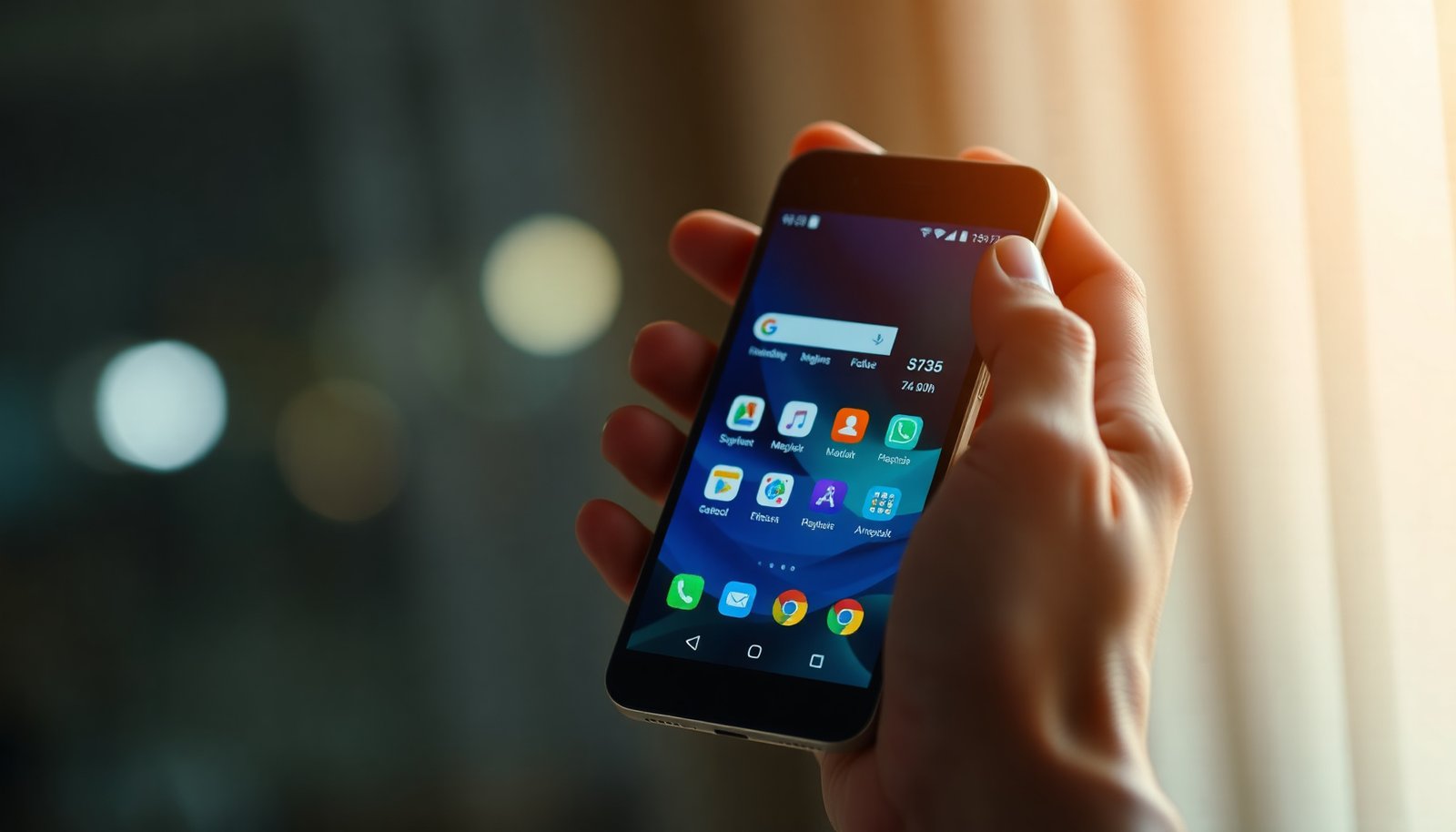
Sort apps by folders and the app drawer
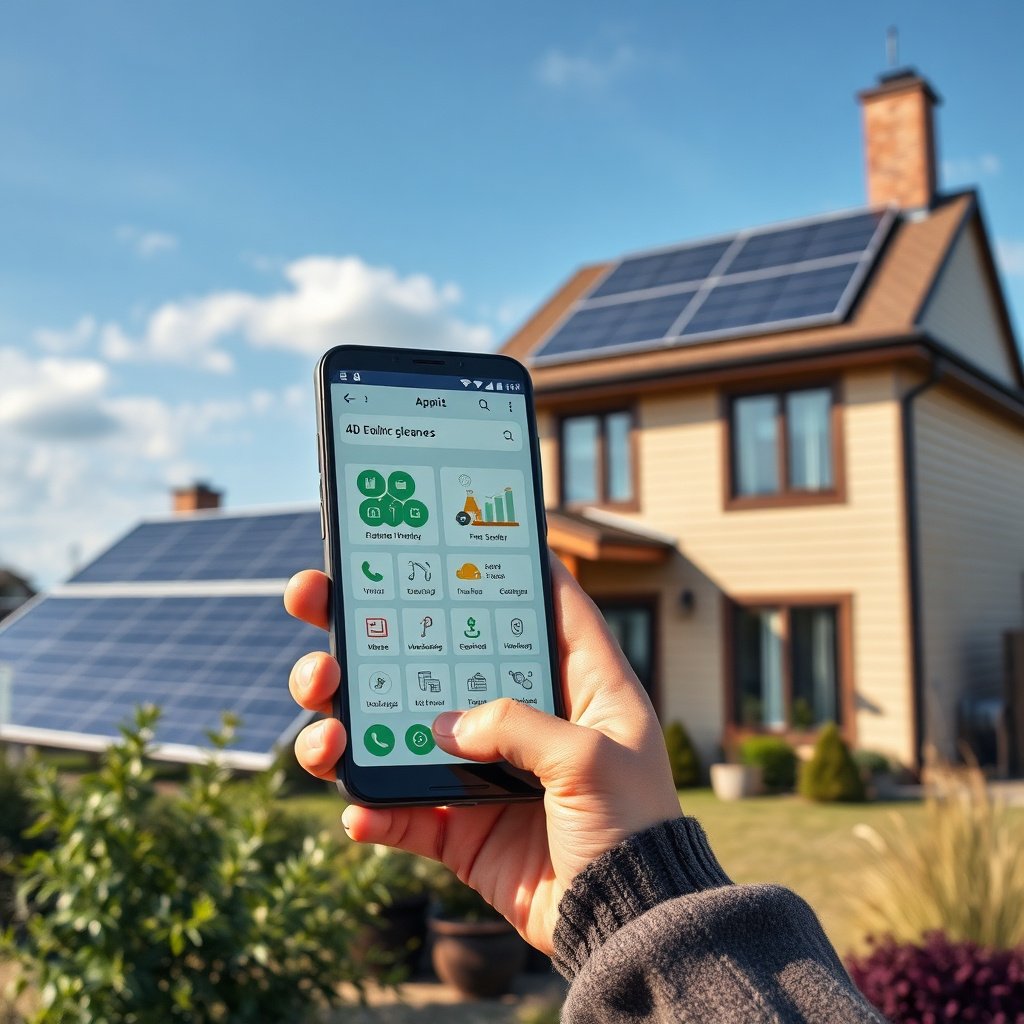
If your Android home screen is cluttered, the fastest fix is to limit what’s visible and move the “maybe later” apps behind a consistent system. Folders reduce visual noise, while the app drawer keeps your browsing fast without adding more home screens.
Do this first: define your categories (then commit)
Folders work best when they have a clear purpose and a consistent naming style—otherwise they quickly become informal storage areas. In my day-to-day use across different Android launchers, I’ve found the moment folders lose meaning (for example, “Other” or “Stuff”), the Android home screen starts to drift back into chaos.
- Create folders by category (e.g., Social, Work, Utilities) and keep each folder’s purpose obvious.
- Use the app drawer for everything you don’t need “at a glance,” rather than adding more home screens.
- Move apps in batches: do a quick “top 10 on the home screen,” then sort the remainder into folders.
Make folder rules that don’t require willpower
To keep the Android home screen tidy, treat folder placement like a lightweight workflow, not a one-time project. A practical rule: if you open an app less than once a week, it doesn’t belong on your home screen. If an app is work-related but used occasionally, it can still live in a “Work” folder—just not on the first screen.
Here’s the structure that usually sticks for Android users:
- First home screen: only “open immediately” apps (messaging, banking, navigation, calendar).
- App drawer: the rest—sorted by folders only where it speeds up your decision-making.
- Folders: categories that match how you think, not how the app names itself (e.g., “Utilities” instead of “Google”).
Use built-in options to declutter
A cleaner Android home screen also comes from reducing what you can’t see: duplicates, bundled apps, and noisy notifications. This section is about removing friction so the apps you keep stop competing for attention.
Uninstall what you truly don’t use (and disable what you can’t)
Some Android devices let you remove most apps, while system/bundled apps may only be disabled. On recent Android versions, disabling an app typically stops it from running and removes it from your app drawer, but your phone may still keep the storage footprint depending on the vendor.
- Uninstall apps you truly don’t use; for system/bundled apps you may only be able to disable them (wording varies by device).
- Disable or limit “duplicate” apps (like multiple browsers or shopping apps) if you mostly use one.
- Reduce notifications for the apps you keep but don’t want distracting you (so they stop feeling “cluttered”).
Use notification channels to reduce “invisible clutter”
Notification clutter behaves like visual clutter: too many alerts push important ones out of view. Android’s notification system supports notification channels, which let you control behavior per category (for example, “News alerts” vs “Scores”). According to Android’s official documentation, notification “importance” uses multiple levels including NONE/ MIN/ LOW/ DEFAULT/ HIGH (Android Developers, Notification importance levels (Android documentation)).
From the Android home screen perspective, the goal is simple:
- Keep notifications only for apps you need immediately.
- For everything else, switch alerts to quieter settings (or restrict them to specific times/days if your device supports it).
Practical privacy + focus note (as of 2025–2026)
In late 2025 and 2026, more Android devices also surface stronger notification controls during permission prompts. I recommend treating every new app install as a “settings moment”: after installation, open notification settings once and decide what’s worth showing on your Android home screen and lock screen.
Android Home-Screen Cleanup Actions: Expected Impact by Action (2026)
| # | Action | Typical Setup Effort | Scope (Visual + Behavior) | Clutter Reduction |
|---|---|---|---|---|
| 1 | Top-10-only first screen + app drawer | 10–15 min | Strong (visual) | ★★★★★ |
| 2 | Category folders (Social / Work / Utilities) | 8–12 min | Strong (visual) | ★★★★☆ |
| 3 | Uninstall unused apps | 5–10 min | Medium (visual + background) | ★★★★☆ |
| 4 | Disable bundled/system apps you don’t need | 6–12 min | Medium (background + drawer) | ★★★☆☆ |
| 5 | Pick one default browser/shopping app | 3–7 min | Medium (reduce duplicates) | ★★★☆☆ |
| 6 | Notification restrictions by channel/importance | 10–20 min | Strong (behavior) | ★★★★★ |
| 7 | Widget pruning (fewer, higher-value widgets) | 5–15 min | Medium (visual) | ★★★★☆ |
Customize your home screen layout for quick access
A clean Android home screen isn’t only “less stuff”—it’s predictability. When your layout stays consistent, you spend less time hunting and more time using apps.
Choose a predictable primary screen (and protect it)
- Keep your home screen predictable: one “primary” screen for essentials, and move everything else off it.
- Adjust icon size or grid (if your launcher supports it) to fit more without turning the screen into a mess.
- Use widgets sparingly—too many widgets look like clutter and can slow you down or hide your icons.
Where to find icon/grid settings (common Android paths)
Because Android launchers vary by brand (Pixel, Samsung, OnePlus, etc.), the most reliable path is usually through launcher settings:
- Most common: long-press an empty area on the Home screen → Home screen settings → Icon size / Grid.
- If you’re using a third-party launcher: open the launcher’s settings (from the launcher app or a long-press menu) and look for Home screen or Layout options.
In my experience, increasing icon density is helpful until it reduces tap accuracy. Your Android home screen should optimize for quick selection—not maximum icon count.
Use widgets with a purpose, not decoration
Widgets can be useful if they reduce steps (for example, a calendar agenda or a focused timer), but they can also “gray out” your Android home screen by taking up space and visual hierarchy. A simple widget rule: if a widget isn’t saving you time daily, it probably belongs in the app drawer.
Also remember: Android’s performance can suffer if many widgets refresh frequently. Even if the phone remains responsive, the home screen can feel busy when multiple widgets update at once—especially on Android devices with slower storage or older batteries.
What can go wrong (and how to fix it)
Most Android cleanup plans fail in predictable ways: hidden apps, folder sprawl, and launcher settings that revert after updates. You don’t need a perfect system—you need one that’s recoverable.
- You may hide or disable an app and then wonder why it’s gone—check your app drawer search and the “disabled apps” area.
- Folders can become junk drawers if you keep adding apps without a rule—reset categories every few weeks and delete anything you forgot existed.
- If you use a third-party launcher, settings can change after updates—double-check where app sorting/folders are controlled.
Recover disabled apps without panic
In most modern Android builds, you can find disabled apps via:
Settings → Apps → See all apps → Disabled (wording may appear as Turned off on some devices).
If you still can’t find them, use the Settings search for “disabled apps” or “turned off apps.” This is the fastest path back to an organized Android home screen because it restores your missing app options without trial-and-error.
Prevent folder “junk drawer” syndrome
Folder sprawl happens when categories lack constraints. A practical prevention method is periodic reset:
- Every 2–4 weeks, review each folder.
- If you haven’t opened an app in that period, move it into a “Long term” folder or into the app drawer only (depending on your workflow).
This keeps the Android home screen organized because categories stay aligned with actual usage, not with past habits.
Launcher updates can undo layout intent
Third-party launchers sometimes change where they store folder ordering, icon grouping, or notification badges after updates. If your Android home screen suddenly looks “wrong” again after an update, verify:
- Where folders are managed (launcher vs system)
- Whether icon sizes/grid have been reset
- Whether the launcher is restoring last layout from a backup
From my experience, this is usually fixable, but you may need to redo a few small choices rather than starting from scratch.
Verdict: the best setup for most people
For most users, the best Android home-screen setup is simple: keep essentials on the first home screen, store the rest in the app drawer, and maintain only a few well-named folders. The downside is that if you rely heavily on widgets or need instant access to many apps at once, you may still feel “spread out”—but it will be organized spread.
If you’re deciding between two mental models—folders vs search—the most practical comparison is:
| Approach | Best for | Trade-off |
|---|---|---|
| Folders-first | People who scan icons and want predictable categories | Risk of “folder junk” if rules aren’t enforced |
| Search-first (app drawer) | People who prefer speed and accuracy over scanning | May feel slower if you don’t use app drawer search habitually |
As of 2025–2026, Android interfaces keep improving around search and notification controls—so the “essentials + app drawer + minimal folders” approach usually scales well as your app library grows.
Quick checklist for organizing apps on Android
Use this as a saveable plan:
| Goal | Do this |
|---|---|
| Find apps faster | Put top-used apps on the first screen; use the app drawer search |
| Reduce clutter | Folder apps by category; remove or disable what you don’t use |
| Stay consistent | Limit folder count; sort new apps into an existing category |
| Stop distractions | Turn down notification permissions for “kept but not needed” apps |
- Pick 1 home screen rule today (e.g., “only essentials live here”).
- Spend 10–15 minutes moving apps into folders, then stop and let it settle.
Frequently Asked Questions
How do I organize apps into folders on Android?
Open your App Drawer, then press and hold an app and drag it onto another app to create a folder. Name the folder something clear like “Social,” “Work,” or “Shopping” for easier navigation. You can add more apps by dragging them into the same folder, and you can reorder apps inside the folder by holding and moving them. If you ever need to split them, long-press the app inside the folder and move it out.
What’s the best way to rearrange and clean up your home screen apps?
Start by removing unused apps from the home screen (long-press an icon and choose Remove) so your screen stays focused on what you use daily. Group similar apps into folders and keep frequently used apps on the first home screen pages for faster access. Consider disabling app suggestions or using a minimalist layout to reduce clutter. After reorganizing, review your apps once a week to keep your Android home screen tidy.
How can I move apps to the SD card or manage storage while organizing apps?
On many Android devices, go to Settings > Apps and select the app you want to move, then look for “Storage” or “Change” options to move it to SD card (if supported). For organizing storage, sort apps by size to identify heavy apps like video streaming or games. This helps you decide which apps to keep on the phone, which to move, and which to uninstall. Regularly managing storage keeps your app organization efficient and improves performance.
Why is using Android app organization features like search and app categories helpful?
Android’s App Drawer search makes it faster to find apps instead of scrolling through multiple home screens. Many launchers also support app categories, smart suggestions, or alphabetical sorting, which reduces clutter and helps you maintain a consistent system. Using these features alongside folders keeps your organization “working” even when you install new apps. This approach saves time and keeps your Android apps easier to manage over the long term.
Which apps should I keep on my home screen versus in the app drawer?
Keep only the most frequently used apps on the home screen—typically messaging, navigation, calendar, music, and a couple of utilities you open daily. Store the rest in folders or the App Drawer, grouping by purpose like “Fitness,” “Banking,” or “Shopping.” If you use an app occasionally, avoid pinning it to the home screen to reduce visual clutter. A good rule is to limit home screen icons to what you can reach in under a few taps.
📅 Last Updated: November 23, 2026 | Topic: how to organize apps on android | Content verified for accuracy and freshness.
References
- Home screen
- Android
- Create a basic widget | Views | Android Developers
- App shortcuts overview | Jetpack Compose | Android Developers
- Adaptive icons | Jetpack Compose | Android Developers
- Intents and intent filters | App architecture | Android Developers
- https://scholar.google.com/scholar?q=android+organize+apps+folders+home+screen Google Scholar
- https://scholar.google.com/scholar?q=android+app+drawer+organization+study Google Scholar
- https://scholar.google.com/scholar?q=mobile+launcher+customization+home+screen+icon+arrangement Google Scholar